Accessing the Calendar (Desktop)
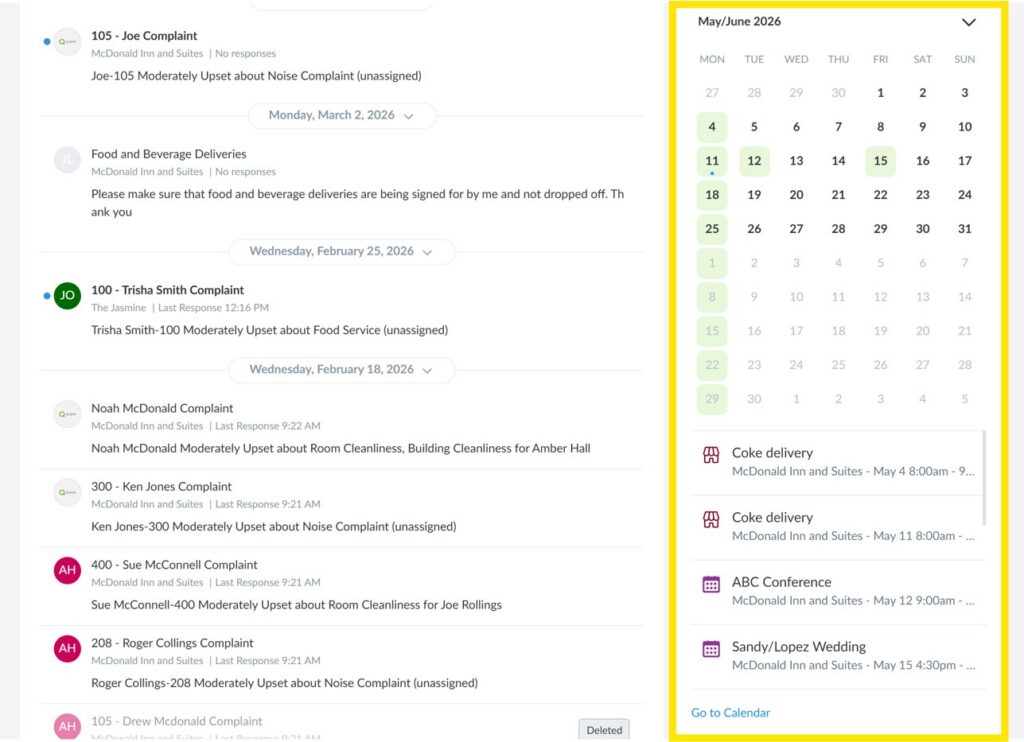
There are multiple ways to access the Calendar app from the desktop. When you log in to Quore on the desktop, you will be taken to the Dashboard. If you scroll below the Rooms Grid, you will see a calendar to the right. Click on a green date to be taken to the corresponding event in the Calendar app, or click Go to Calendar.
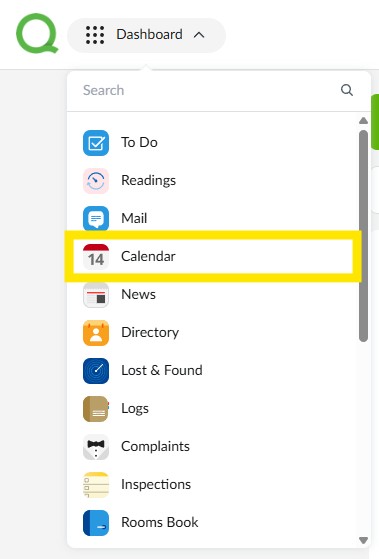
You can also click your App Switcher in the top-left corner and select Calendar to open the app.
When you open the Calendar app, you will see a calendar to the left and a list of upcoming events to the right. Click a date on the calendar to view event(s) for that day, or click an event title to view its details.
Pro Tip: Search for the title of the event you are looking for in the Search field.
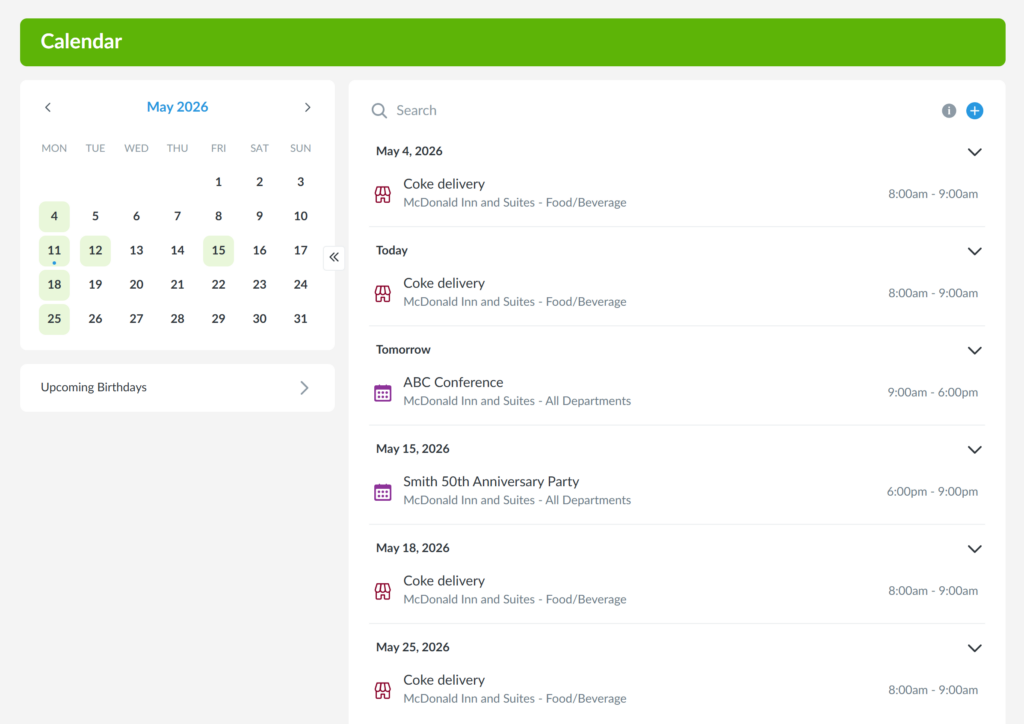
Note: The events you see will depend on the privacy and department settings that were selected when the event was created.
Click the blue + icon to add a new event to the calendar. Click here to learn more about adding an event to the calendar.
Accessing the Calendar (Mobile)
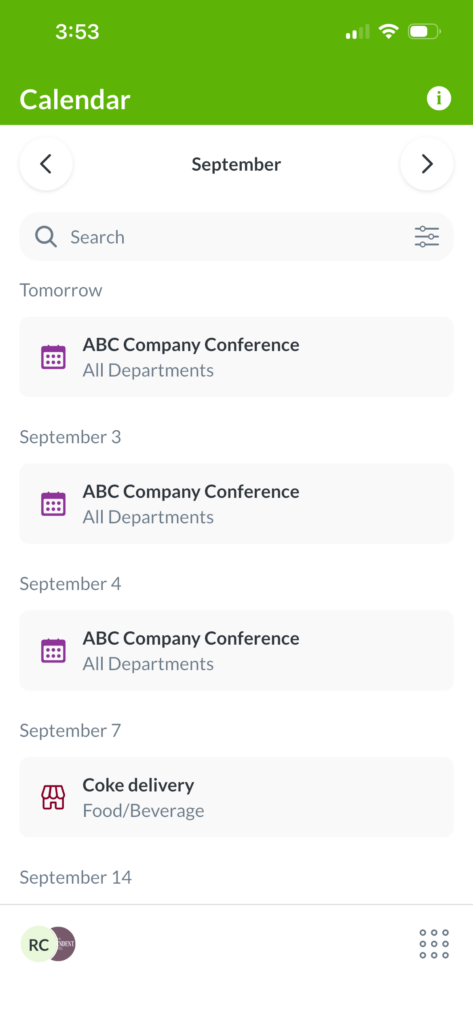
The mobile Calendar app is view-only. New events can be added and edited on the desktop.
To access the Calendar in the Quore mobile app, log in, select the App Switcher in the bottom-right corner, and select Calendar. From there, tap an event title to view its details.
Looking for past or future events? Use the month switcher to browse other entries.
Pro Tip: Use the Search and Filter options to find what you’re looking for more easily.