

Rooms Grid
Note: If your property’s Quore account is integrated with your Property Management System (PMS), the Dashboard Rooms Grid includes an additional view: Status. To learn more about the Status grid, including the information it displays and how it works, click here to visit our PMS Integrations article.
At the top of your Dashboard page is what is known as the Rooms Grid with each box representing a guestroom in your hotel. Throughout the day, the Rooms Grid will display various colors, indicating activity taking place in real time.
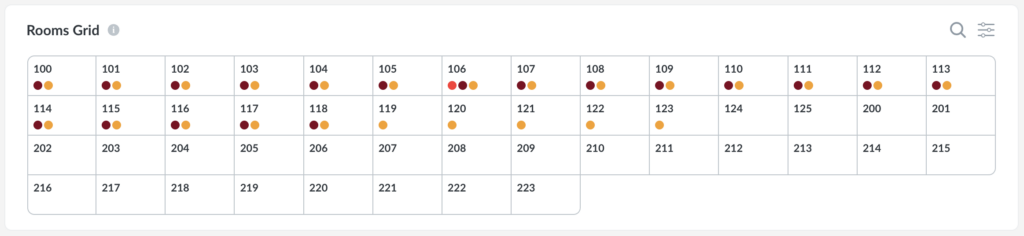
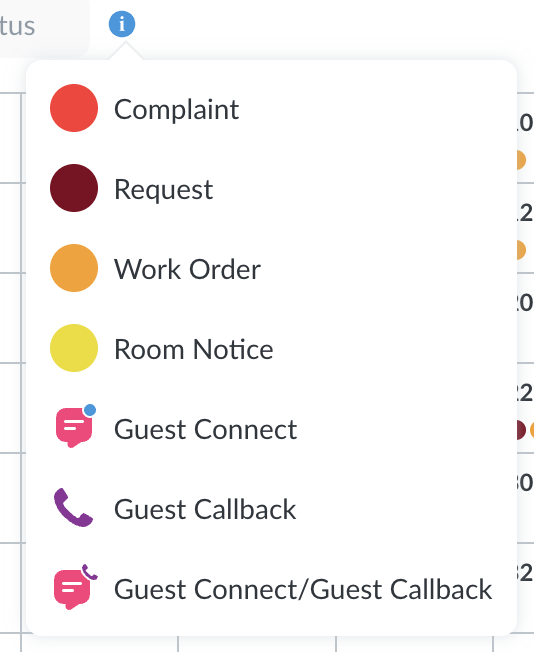
- Orange represents an open Work Order
- Red indicates represents an open Complaint
- Dark Red represents an open Request
- Pink indicates a message via the Connect app (an optional add-on app)
- Yellow represents an open Room Notice
- Purple with a phone icon represents a Guest Callback
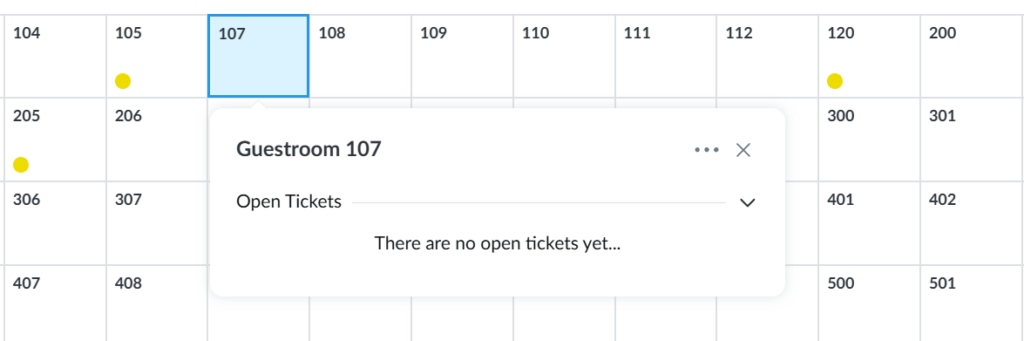
Pro Tip: Every user can see the colors on the Rooms Grid, however you will only be able to view details of an item if it is assigned to you, your department, or Anyone, if you are the item’s creator, or you are a management-level user in Quore.
At a Glance, Response Time & Guest Satisfaction Wheel
-
At a Glance is now the Threshold Pacing report
- Response Time is now the Average Response Time report
- The Guest Satisfaction wheel data is now found in the Average Guest Satisfaction report
Learn more about our Reports app here.
Log Book
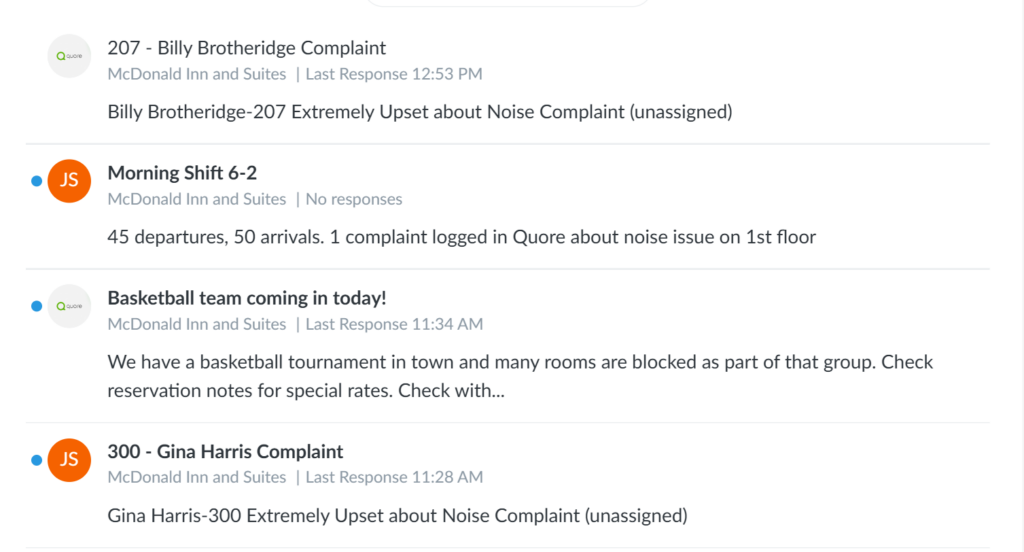
Below the Rooms Grid, you’ll find your property’s Log Book. Complaints created in Quore are automatically posted to the Log Book, making it easy for your team to stay informed. Use the Log Book to post and review shift notes, updates, and other important information that needs to be shared across teams.
To learn more about using the Log Book, check out this article.
On Duty
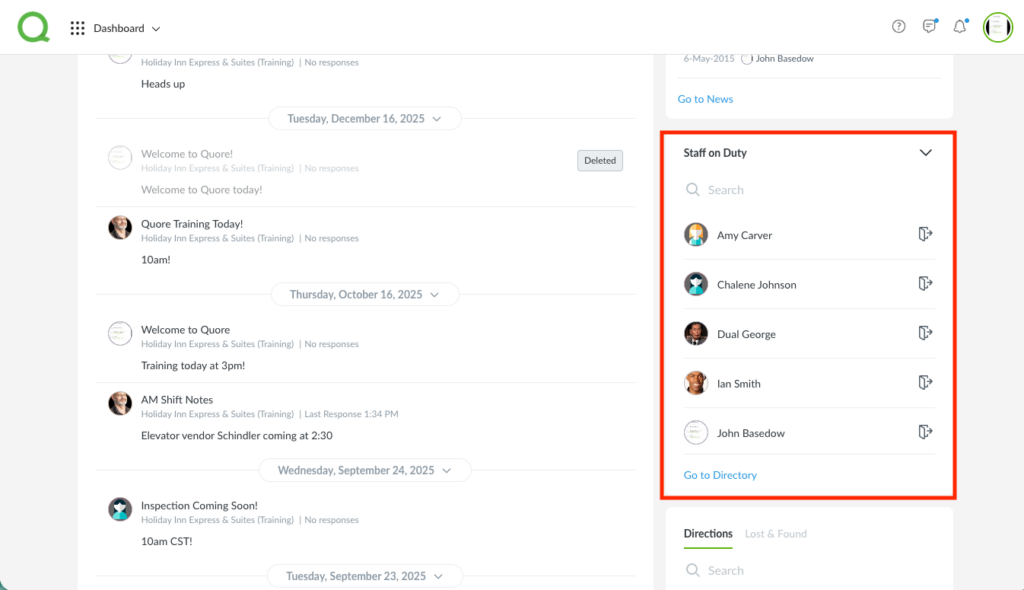
The Account area in the top right allows users to mark themselves on or off duty. Whenever you log in to Quore at the beginning of your shift, click the toggle button to mark yourself On Duty. This tells Quore you’re at the hotel and available for communication and/or notifications.
Your Dashboard also shows you other users currently on duty. Managers will have the ability to sign others off if they forget.
Quick Actions
Finally, you can initate action items directly from the Dashboard, to the right of the Log Book section, without having to scroll through the various apps.
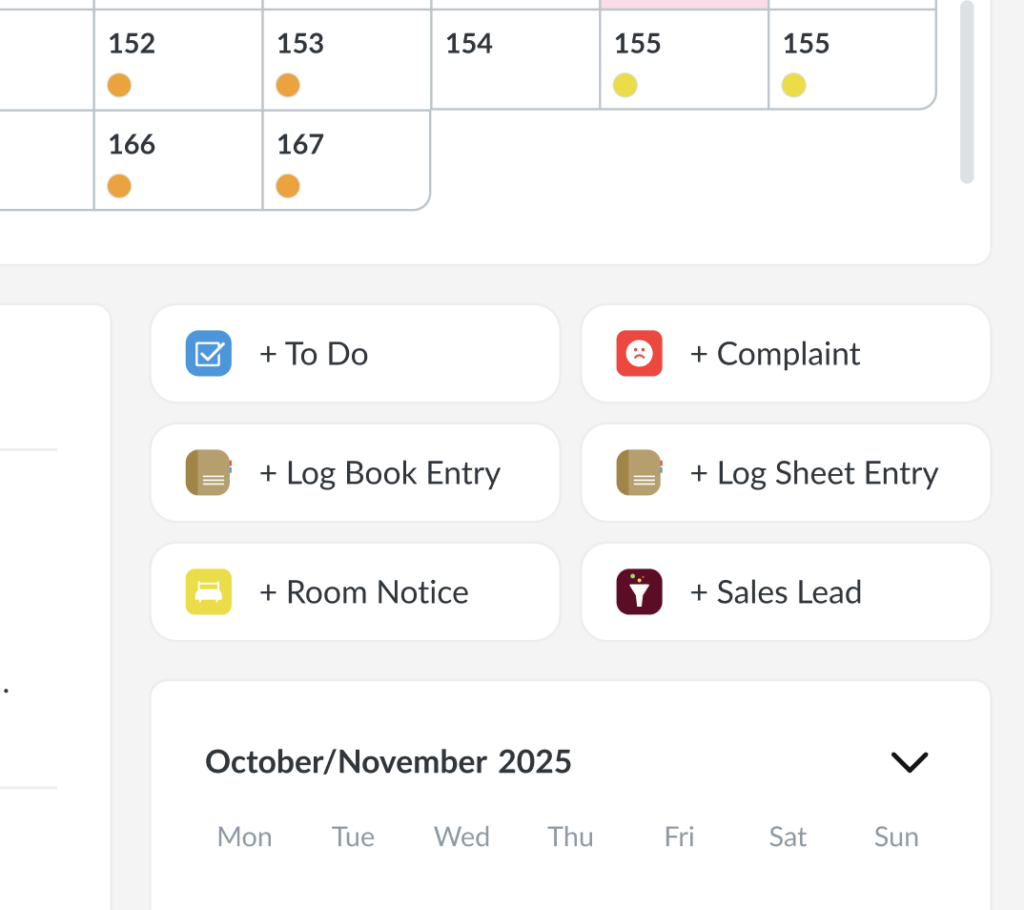
Note: You will only have the Sales Lead option if your property uses the Sales app.
Remember, any time you are in another part of Quore and wish to navigate back to the Dashboard, simply click on the Q at the top of your screen.

