


The Documents app is available from the desktop version of Quore and acts as an internal file-sharing system. You can upload commonly used documents such as authorization forms, certifications, HR forms, and more, set permission settings so that these documents are only viewable to certain users, and organize documents into folders.
It is important to note that the Documents app only displays documents uploaded to this app, and not documents uploaded to other apps.
Note: Documents is only available on the desktop.
To access the Documents app, log in to Quore on the desktop and click the App Switcher in the upper-left corner. Scroll down and click Documents to open the app.
Viewing Documents
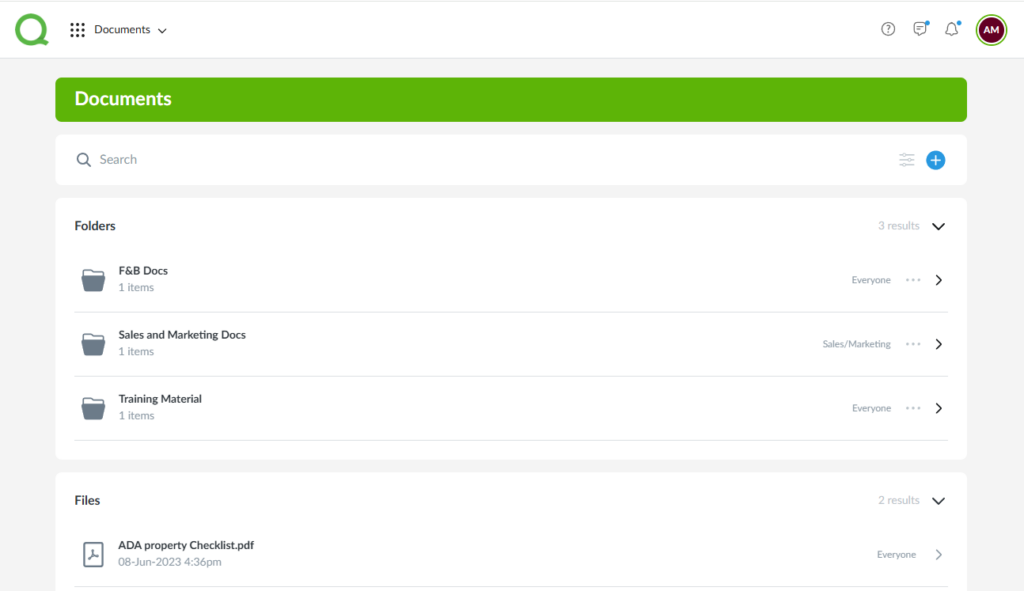
The Documents page is the first page you will see after opening the Documents app. This page displays all files and folders. Use the Search and Filter options to refine your results. Users can see all files and folders that have been shared with everyone, their department, and their private files and folders.
Pro Tip: If you have access to multiple properties, use the property switcher at the top of the Documents page to select which property’s documents you want to view.
- Click any file or folder to expand it and view additional details, such as the files within a folder or information about a file.
- Click the title of the individual file to view it.
- To make changes, click the three-dot menu next to a file or folder and select Edit File or Edit Folder. From there, you will have the option to delete the item. Note that deleting a folder will also remove all files within it.
Note: In addition to the creator, only users in the same department or those with higher-level titles can edit or delete the file or folder.
Adding Documents
From the Documents page, click the + icon to the right of the search bar to add a new file or folder. Click here to learn more about adding new folders and files.

