In this article, you will learn the basic features of mobile navgation.
SECTIONS:
Apple Devices
Android Devices
Apple Devices
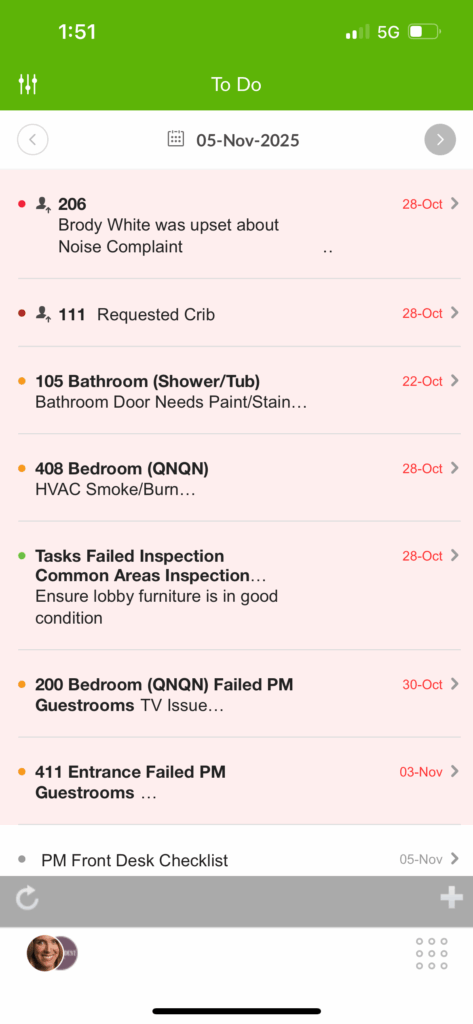
When you log in to the Quore mobile app, you will see the To Do List. Filter your To Do List by to do type by tapping the icon in the top-left corner of your screen.
How to Change your Language
To change your language settings on the Quore mobile app, you will need to set your preferred language on the desktop.
- Log into app.quore.com on the desktop.
- Click on your name in the header.
- Click My Account.
- Scroll down until you see the Language dropdown menu.
- Select your language from the dropdown.
- Click the green Save Changes button.
Changing your language on the desktop will update the Quore mobile app as well. Any updates to your preferred language settings must be completed from desktop.
Universal Footer Options
At the bottom of your screen is the universal footer, which will appear throughout the Quore mobile app.
Tap the person icon in the lower left corner to easily mark yourself On/Off Duty, update your Account Settings, access Help & Support, switch your property, or log out.
Tap the App Switcher in the lower right corner to access the Quore apps available on mobile.
Android Devices
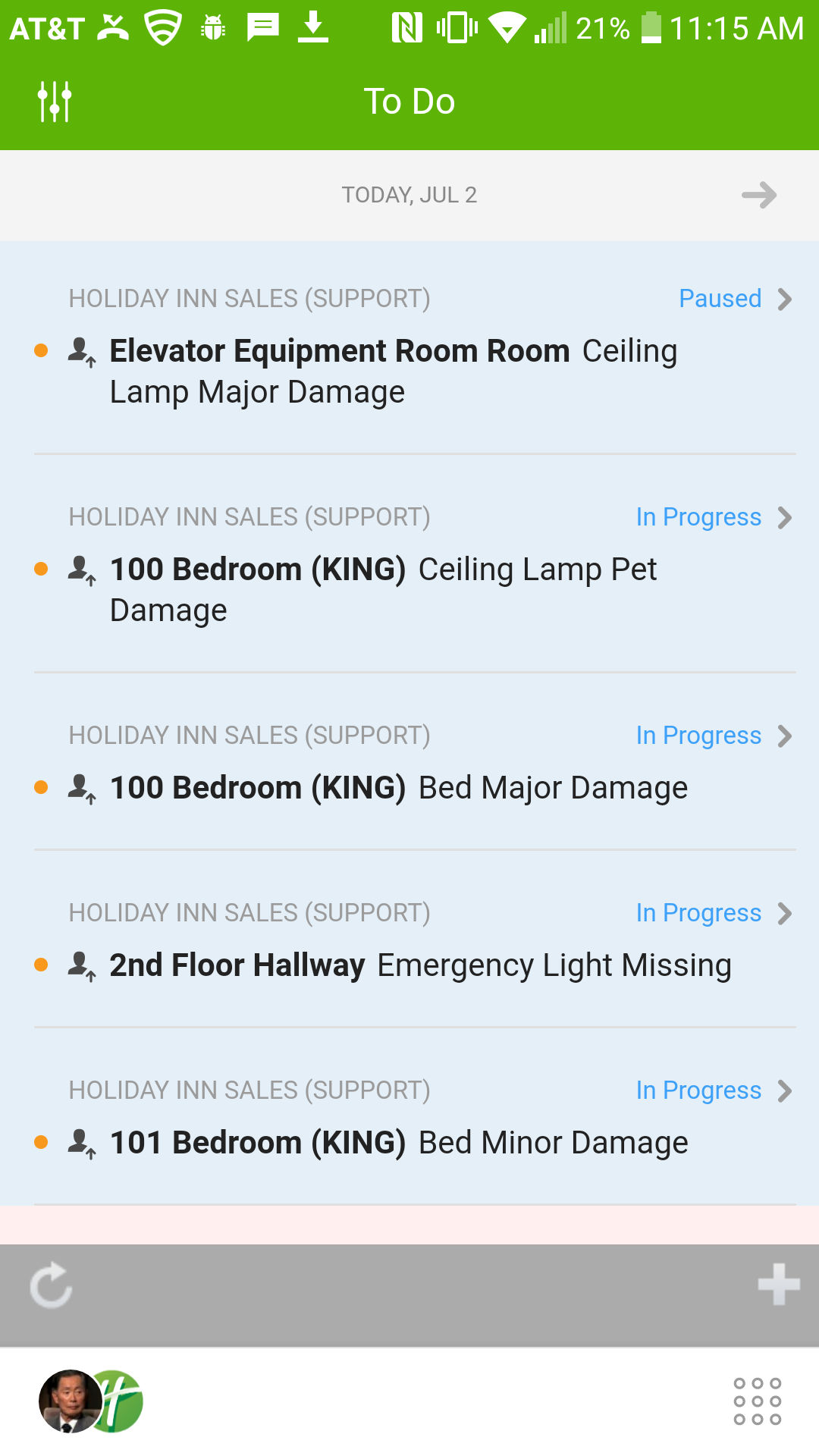
When you log into Quore on an Android device, you will be taken to the To Do List.
User Profile
Tap the person icon in the lower-left corner to easily mark yourself On/Off Duty, update your Account Settings, access Help & Support, switch your property, or log out.
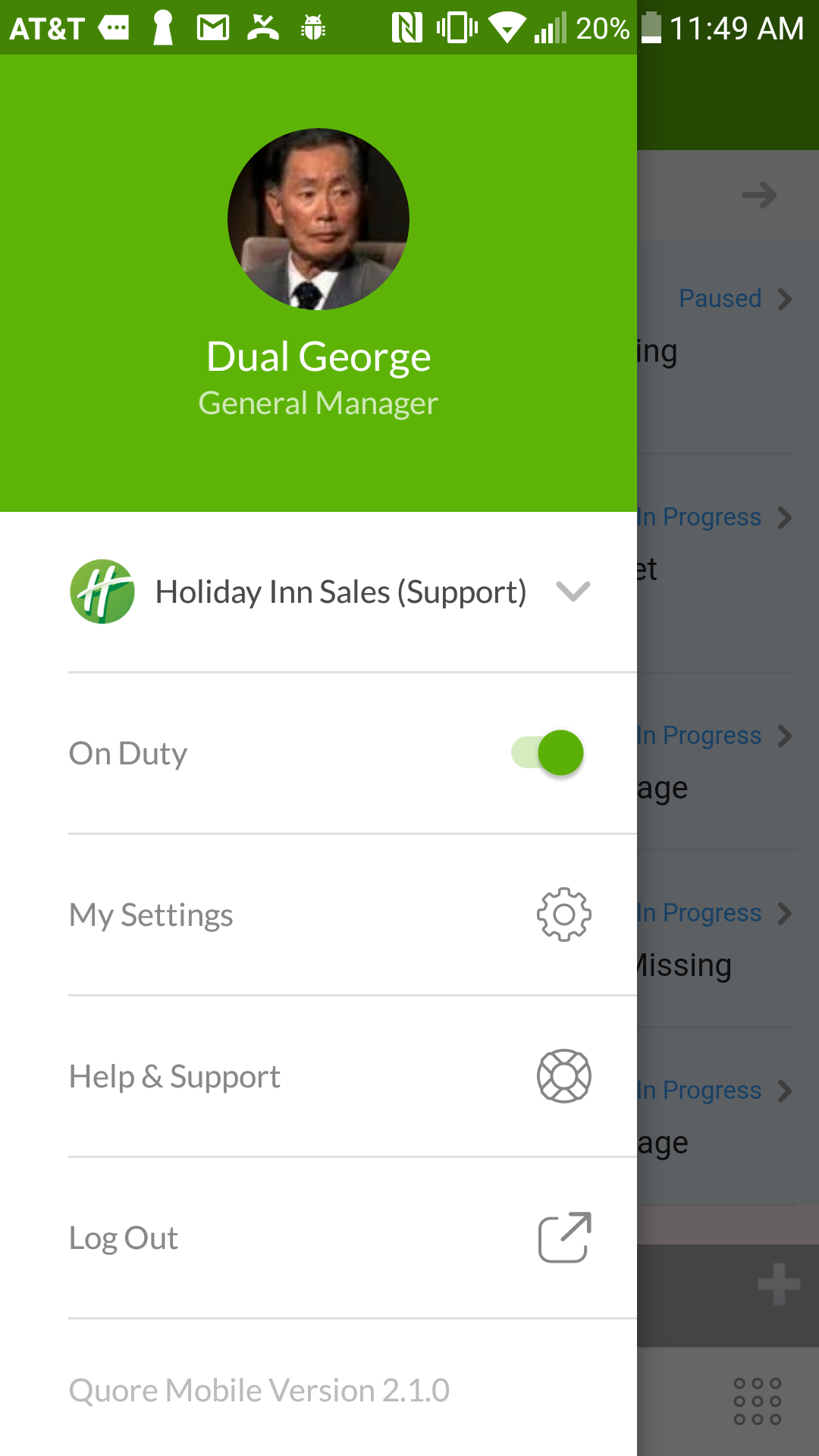
Let’s take a closer look at each area:
Switching Your Property
If you have more than one property, tap the arrow and choose another property.
On Duty
Tap the On Duty switch to mark yourself as On Duty or Off Duty. Going On Duty allows you to receive push notifications for alerts assigned to you.
My Settings
The My Settings section allows you to update your language, email address, phone number, and password. It also displays your device name, the device ID, and when you last logged in on the device.
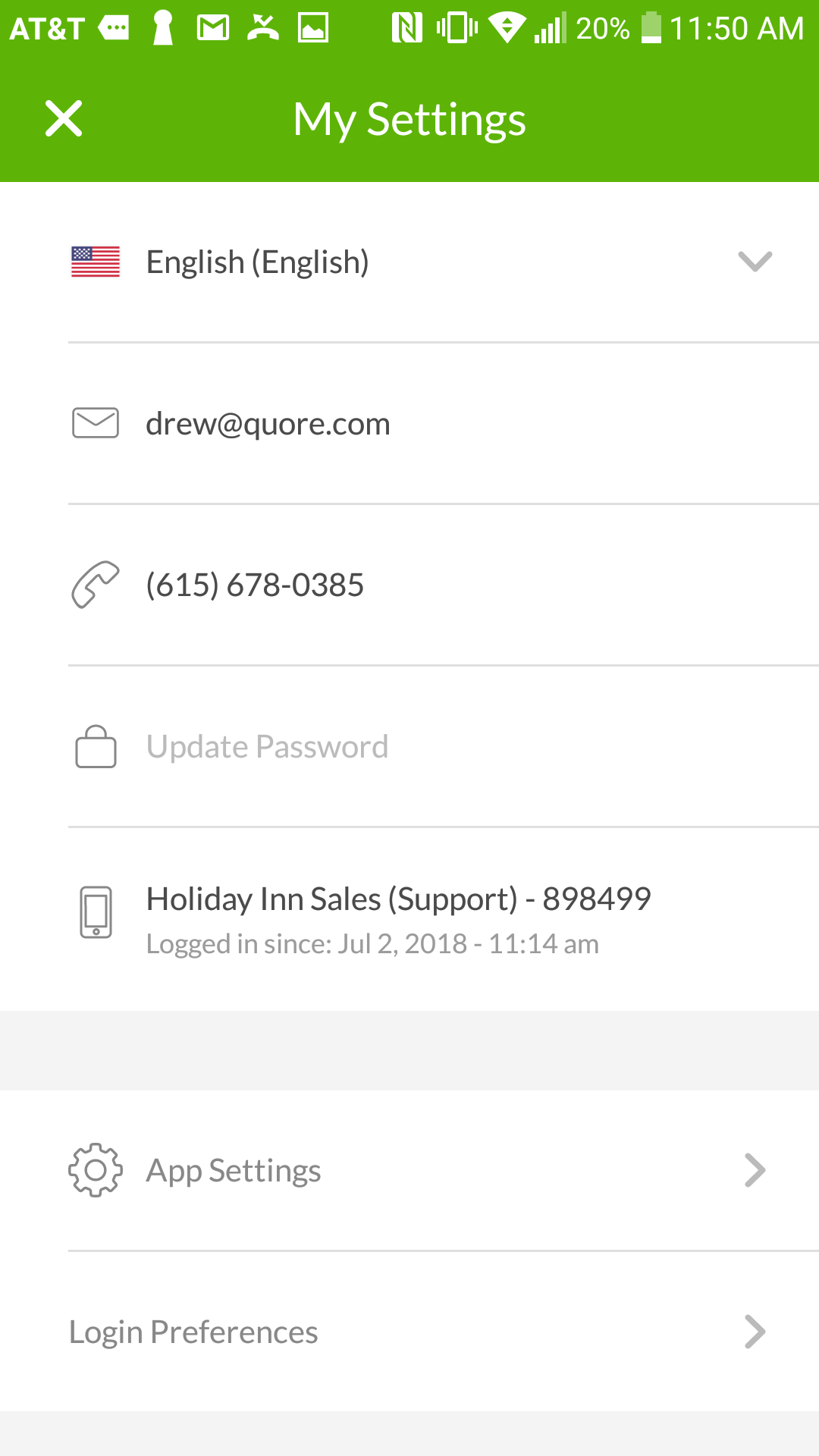
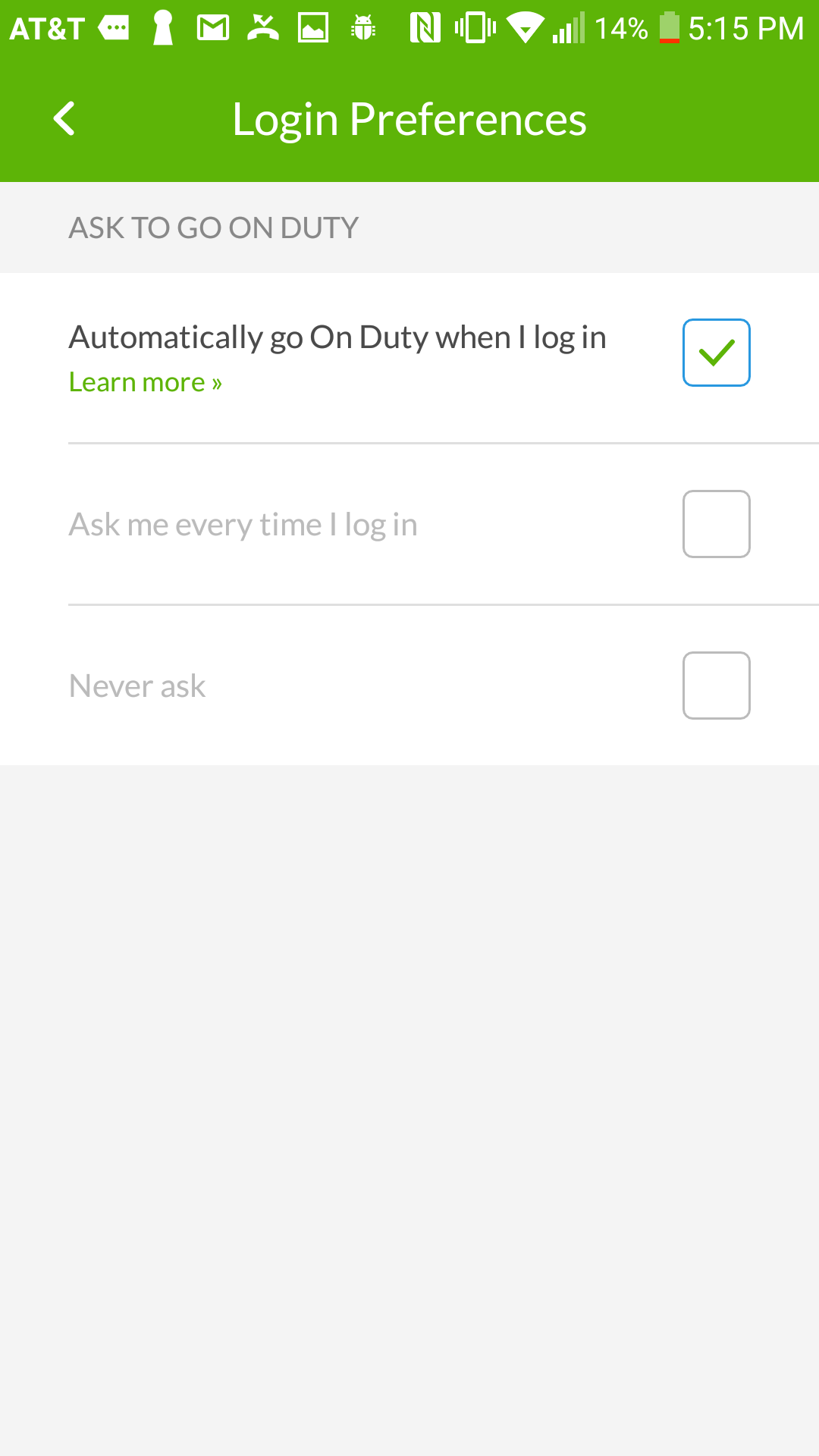
The App Settings and Login Preferences are pictured below: