In this article, you will learn how to set a budget from the desktop using the Budget app.
Customizing Your Settings
Before working on your budget, be sure to complete the General Ledger and Revenue Streams sections on the Settings page – this information flows directly into the budget. Watch the video below to learn how to customize your property’s Budget Settings.
How to Set Up Your Budget
Once you have customized your Budget Settings, you can now set up your budget.
1. From the desktop, open the Budget app, then click on the Budget button.
2. Select your property, month, and year using the dropdown menus. Click Go To Budget.
3. You will have the options to Set Up New, Copy Last Month, or Copy Last Year. If you have never entered a budget into Quore, click Set Up New.
4. Enter the total number of rooms you anticipate selling for that month in the Total Rooms field. Enter your Average Daily Rate into the ADR field. Click Update Budget.
5. Add a Flex Budget Forecast by selecting either Rooms Sold or Percentage from the dropdown, followed by the Total Rooms and ADR. Click Update Flex.
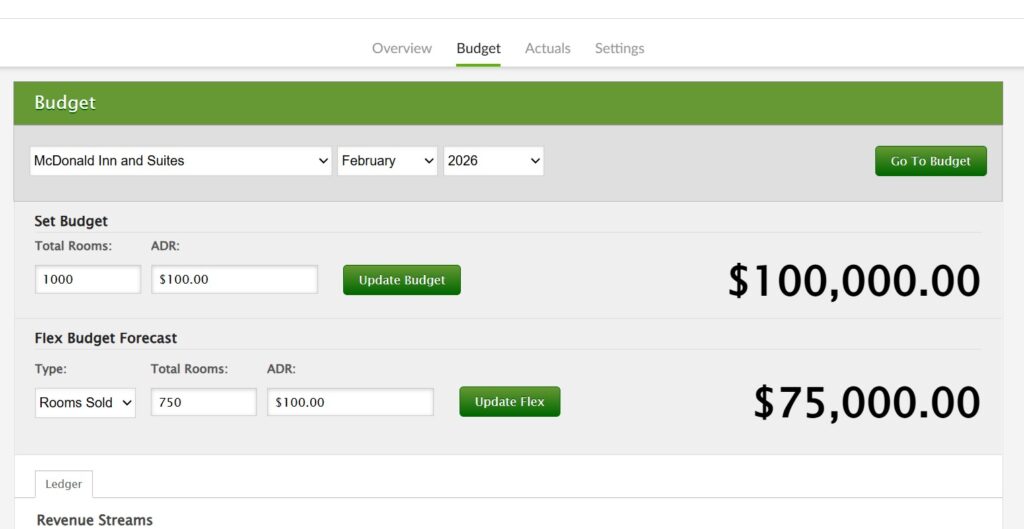
Pro Tip: In the Checkbook app, the Flex Budget amount is the amount that will appear as the budget on the Overview page.
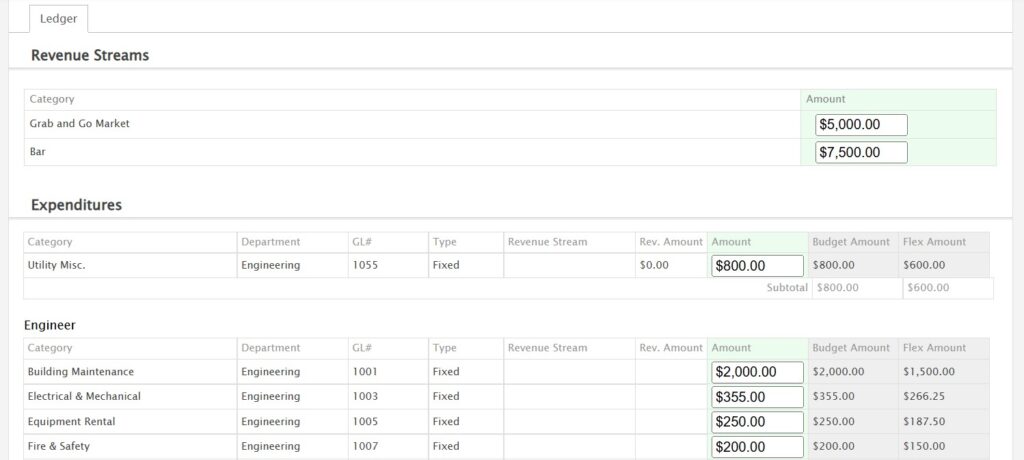
6. Scroll down to enter your Revenue Stream and Expenditure amounts. Click outside a field to save the entry. You can always return to edit the amounts if things change.
Budget Overview
From the Overview page, you can view the Budget, Flex, and Spent amounts for each group. Click the + icon on the far right to expand a group and see the details for each category.

Note: The Spent amounts are calculated from the transactions entered in the Checkbook app.
Budget Actuals
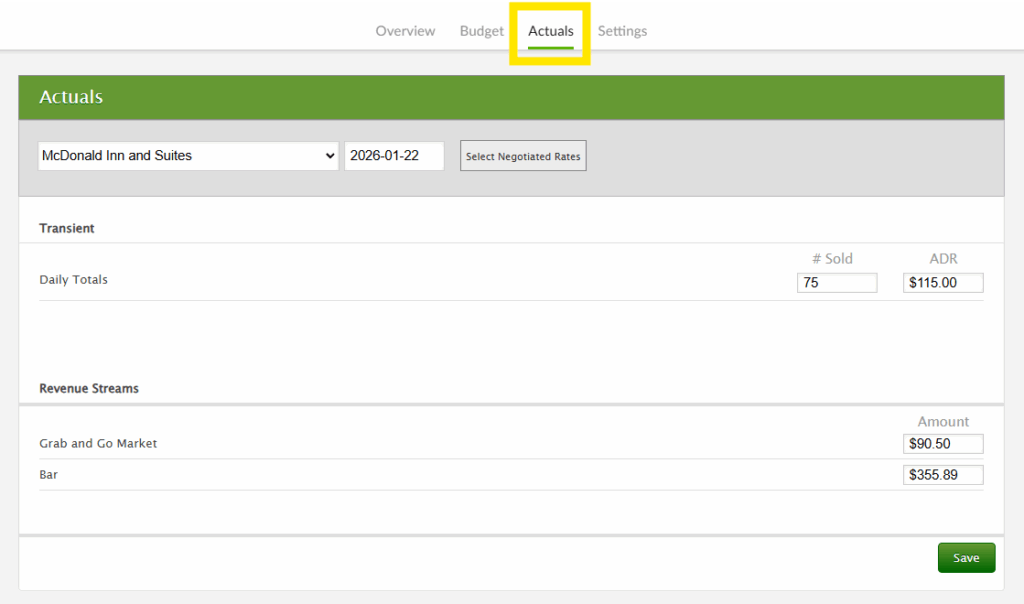
Within the Budget app, you can enter and save the actual revenue earned each day, including revenue from any additional Revenue Streams added in Budget Settings. This information connects to the Sales app.
Pro Tip: Select Negotiated Rates is a Sales app–only feature.