


In this article, you will learn how to create and complete a Room Notice from the desktop and Quore mobile app.
How to Create a Room Notice (Desktop)
1. From the Dashboard, select + Room Notice.
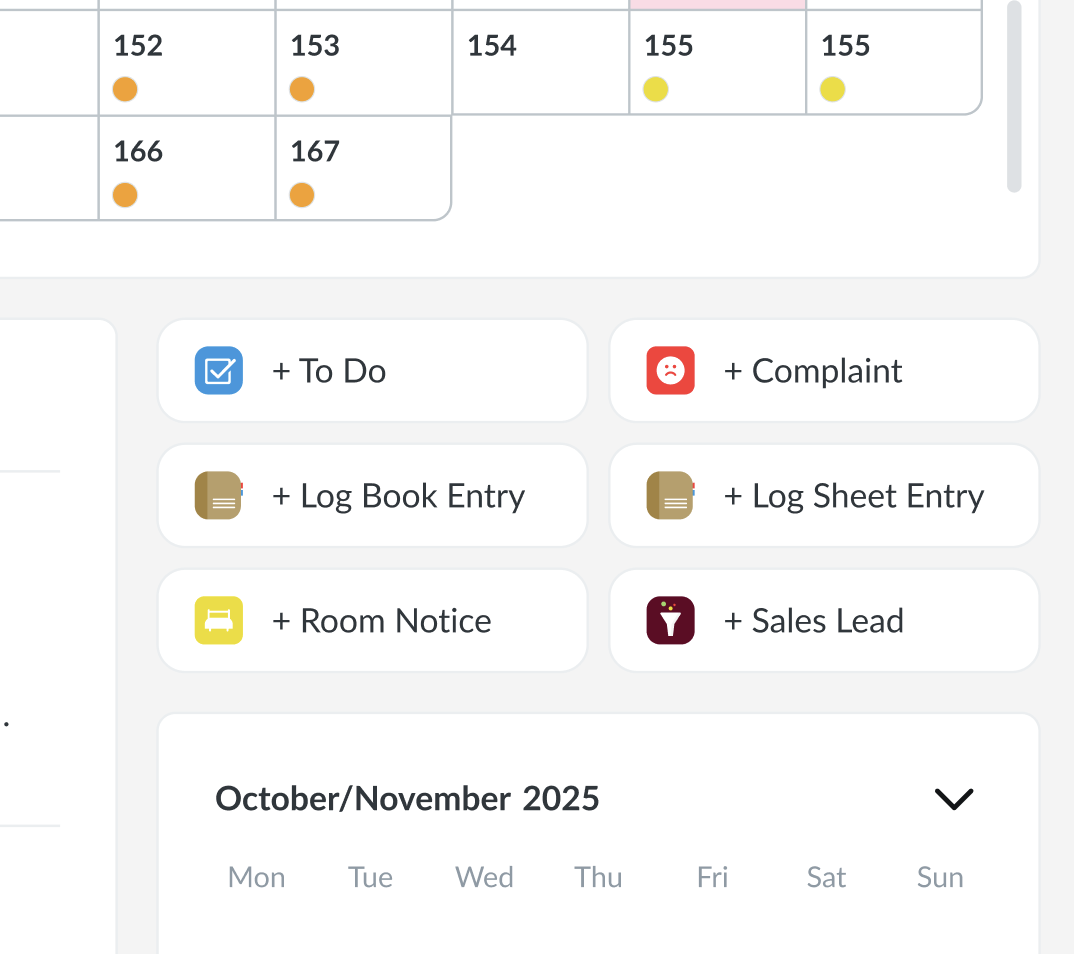
Note: Room Notices can also be created from within the Rooms Book app by clicking on the room number from the Room Status page, or clicking the + icon from the Room Notices page.
2. From the Add new screen, select the Area, Notice Type, Start Date, Start Time, End Date, End Time, and Notes. The Notes field is useful for adding additional context. For example, when creating a Room Notice for a pet room, you can include the type or number of pets in the Notes field.
Pro Tip: In select dropdowns, use the Search option to type your query and quickly locate the desired item.
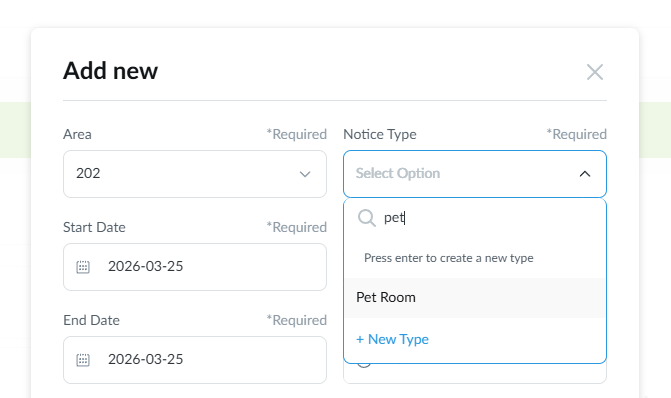
3. If you do not see the Notice Type you need on the list, click +New Type at the bottom of the Notice Type dropdown and type in the name of the Room Notice to add it as an option.
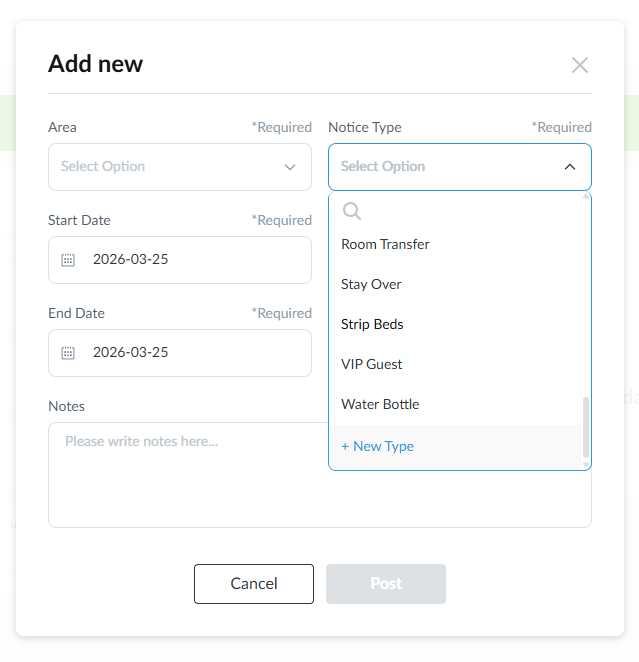
4. After entering all details, click Post.
5. When a Room Notice is active, a yellow dot appears in both the Rooms Book and Dashboard Rooms Grids.
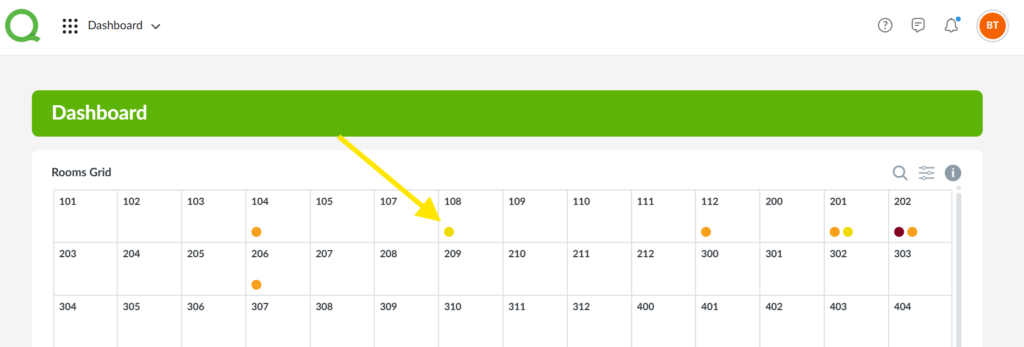
6. Click on the room to view more details.
7. All Room Notices, both Active and Scheduled, can be viewed from the Room Notices page from the Rooms Book app.
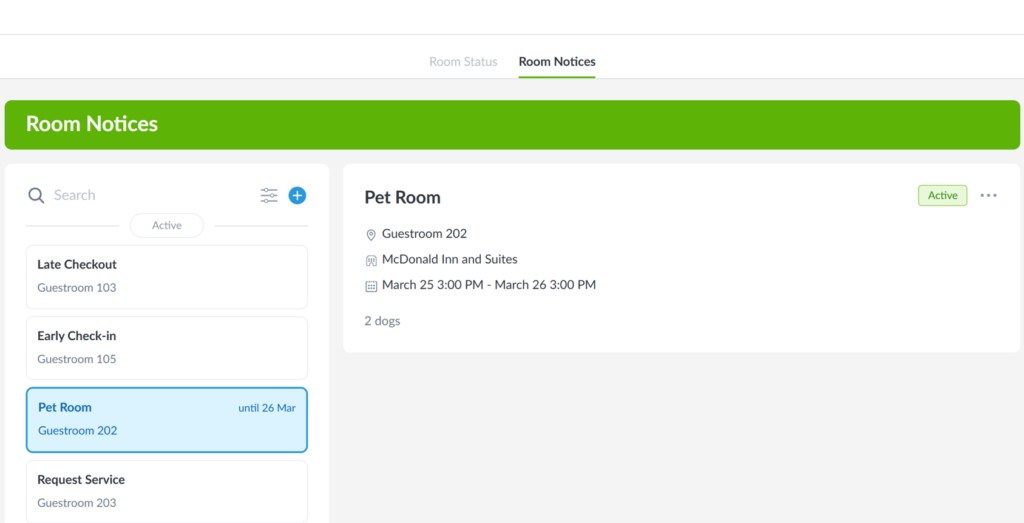
Note: Housekeeping users logged into the Quore mobile app and marked On Duty will receive push notifications when a Room Notice is posted.
How to Edit and Delete a Room Notice (Desktop)
1. To edit/delete a Room Notice from the desktop, click on the Room Notice from the Room Notices page in the Rooms Book app.
2. Click the three-dot menu shown below to View Activity, Edit, or Delete the Room Notice.
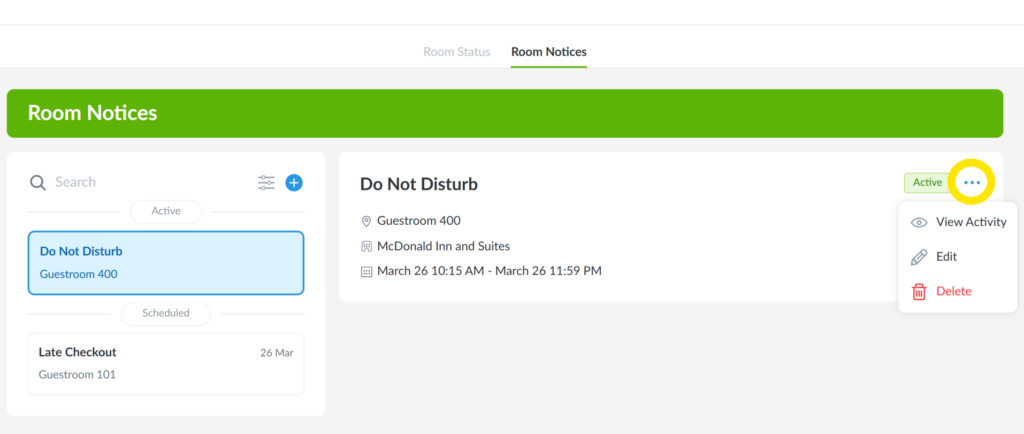
Note: In addition to the creator, users in the same department or with higher access as the creator can edit/delete the Room Notice.
How to Complete a Room Notice (Desktop)
1. From the Rooms Book app, click on the Room Notice from the Room Status page.
Pro Tip: Use the Search field to enter a room number, and the Filter icon to narrow results by Cleaning Status, Room Type, or Room Notice.
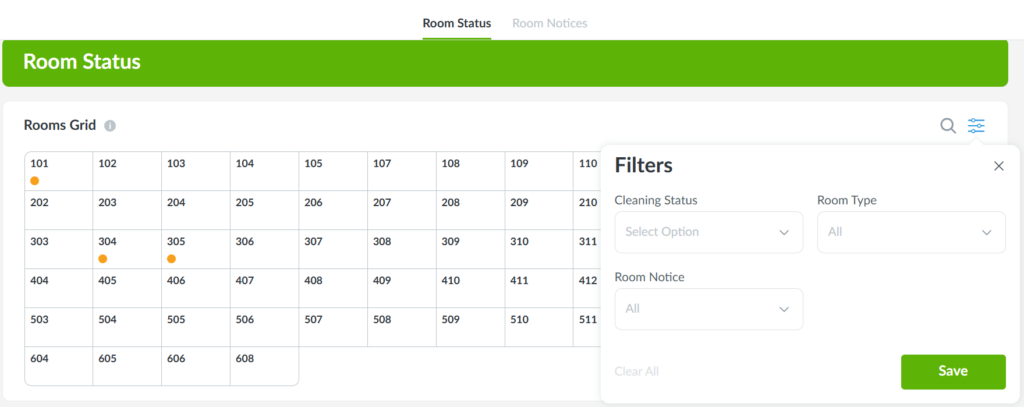
2. Click the End Notice button to close it.
3. This will remove the Room Notice from the Room Status page in the Rooms Book app, as well as your property’s Dashboard Rooms Grid.
Note: If you do not complete a Room Notice before the scheduled end time, the Room Notice will end itself once that time passes.
How to Create a Room Notice (Mobile)
1. Navigate to the Rooms Book app from the App Switcher in the bottom-right corner of your screen. Once in the Rooms Book app, tap the + icon.
2. Use the dropdown menus to choose the Area, Notice Type, Start Date, Start Time, End Date, End Time, and Notes.
3. If you do not see the Notice Type you need on the list, select + New Type at the bottom of the Notice Type dropdown and type in the name of the Room Notice to add it as an option.
4. Tap Post to create the Room Notice. The mobile Rooms Book app houses all active and scheduled Room Notices.
How to Edit and Delete a Room Notice (Mobile)
1. Navigate to the Rooms Book app from the App Switcher in the bottom-right corner of your screen. Once in the Rooms Book app, tap on the Room Notice.
2. Tap on the three-dot menu shown below to View Activity, Edit, or Delete the Room Notice.
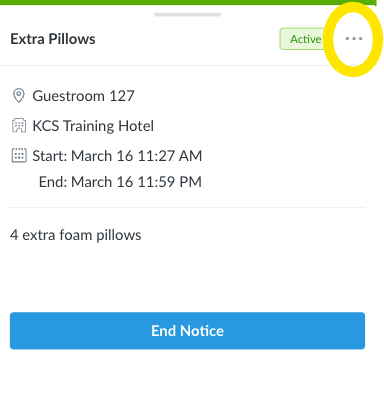
Note: In addition to the creator, users in the same department or with higher access as the creator can edit/delete the Room Notice.
How to Complete a Room Notice (Mobile)
1. Navigate to the Rooms Book app from the App Switcher in the bottom-right corner of your screen. Once in the Rooms Book app, tap on the Room Notice you want to complete.
2. Tap End Notice to close it.
Note: If you do not complete a Room Notice before the scheduled end time, the Room Notice will end itself once that time passes.
Room Notices + Cleanings Plus
Using Cleanings Plus? Click the links below to learn how Room Notices can be added and viewed during breakouts.


