

In this article, you’ll learn how to add items to Quore for Work Orders and PMs, either directly through the Inventory app or using the Inventory Bulk Upload Spreadsheet.
Customizing the inventory in Quore ensures the system accurately reflects what you have on property. The Inventory app will allow you to easily view your property’s assets by category to understand the ages, conditions, and quantities of items within your hotel.
Watch the video below to learn how to create new item types, add items in bulk, and add items to a single area.
Note: Only above property, management, and engineering users will have the ability to add, edit, or delete items in the Inventory app.
How to Add an Item Using the Overview Page
This method is best for adding an item to an individual area.
1. From Inventory app, click on the Overview page.
Note: If you have multiple properties in your login, select the appropriate property from the dropdown and click Go to Hotel.
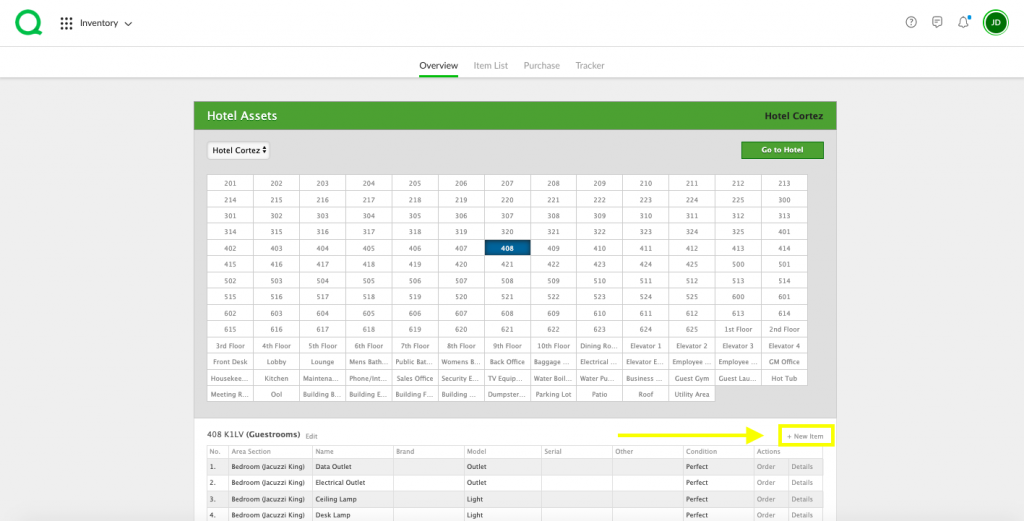
2. Click the area box on the Hotel Assets grid where you want to add an item.
3. Scroll down and click the + New Item link located just below the Hotel Assets grid.
4. Use the dropdown menus to select the Area/Room Section and Category for the new item. You may add a new category if needed. Do the same with the item group and type.
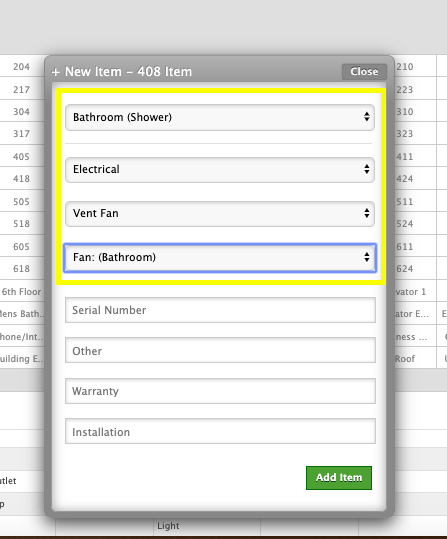
5. Fill in the optional Serial Number, Warranty, Installation, and Other fields.
Pro Tip: Filling out the Serial Number and Other fields are important informationally, but can also be used as distinguishing factors when associated with PMs.
6. When you have entered this information, click Add Item. The newly added item will then appear on your Item List.
How to Add an Item Using the Item List Page
This method is best for adding an item to all guestrooms at once.
1. From the Inventory app, click on the Item List page.
Note: If you have multiple properties in your login, select the appropriate property from the dropdown and click Go to Hotel.
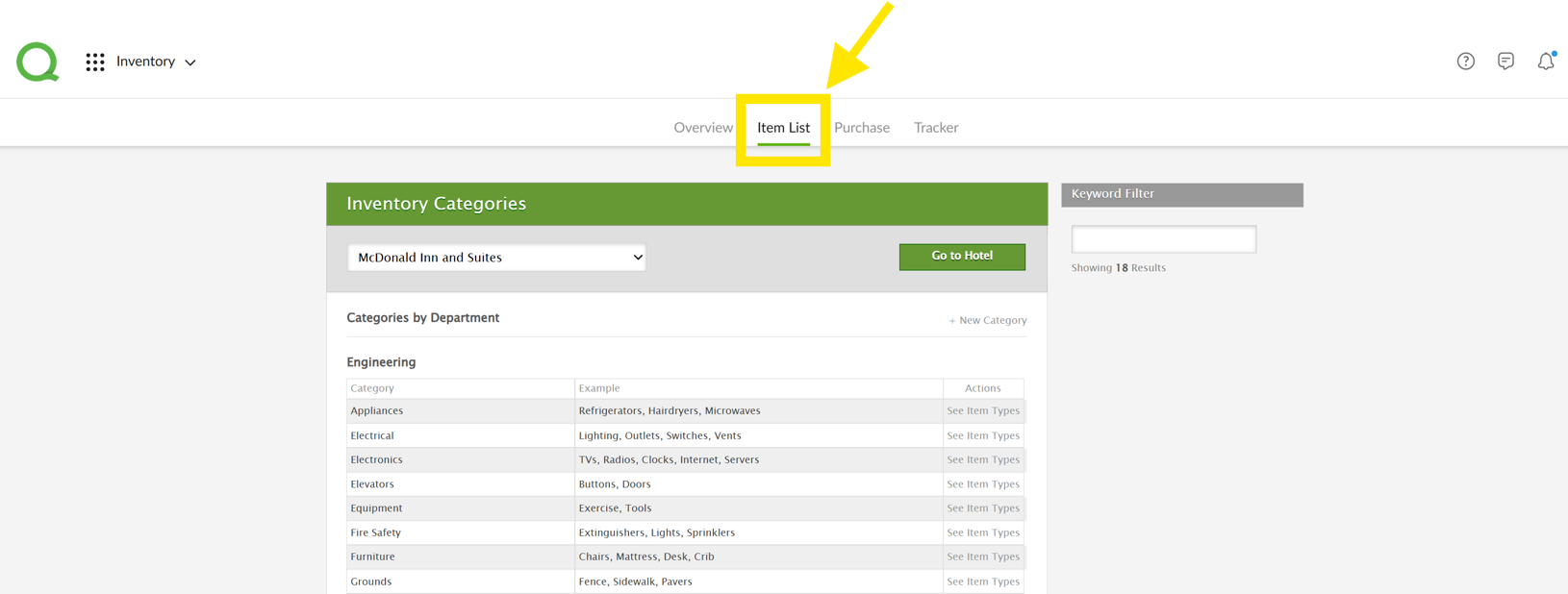
2. Find the category for the item you wish to add, then click See Item Types to the right within the Actions column.
3. On the Category Details page, locate the group, name, brand, and model that matches the item you wish to add. Click See Items to the right within the Actions column to view the items and their locations.
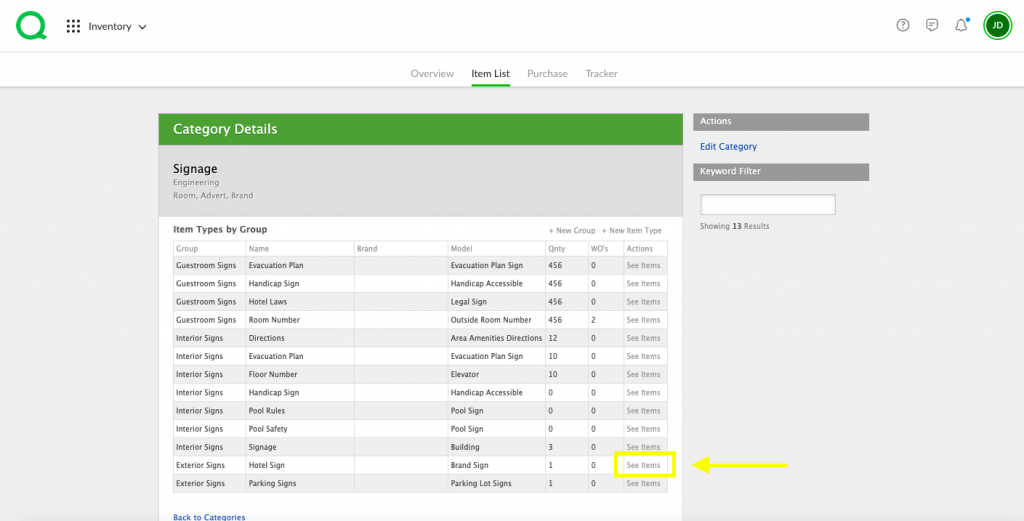
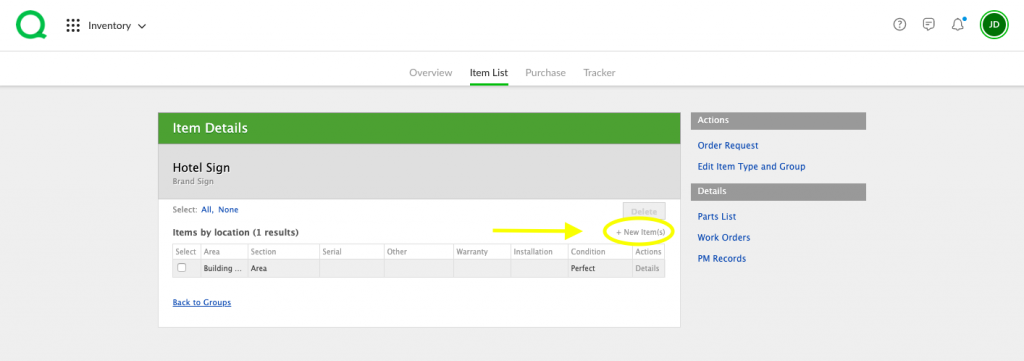
4. To add an item to an additional location, click + New Item(s).
5. Select the Area, Location, and Sections for the item. Click Continue.
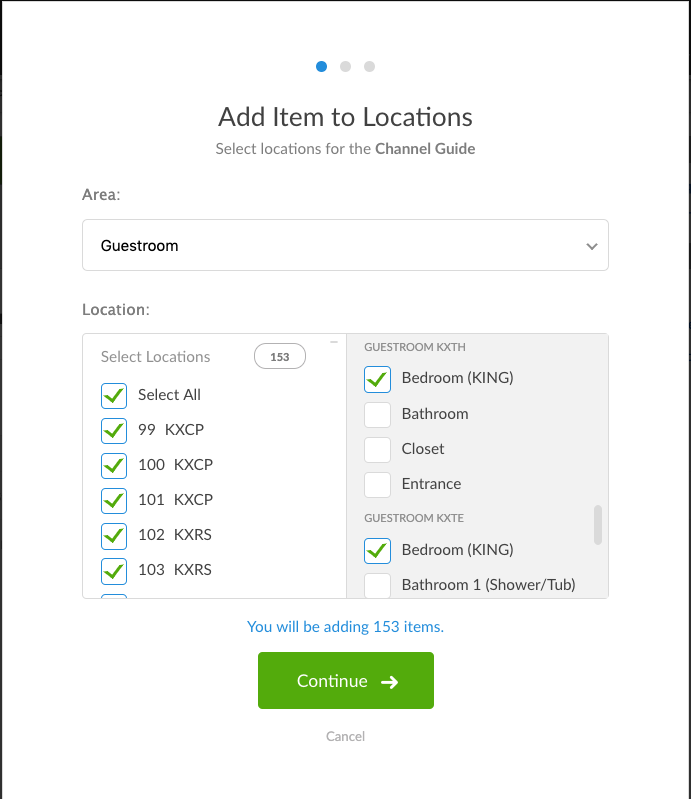
6. Follow the prompts to complete adding all of the items.
Pro Tip: If you are missing a Location you need, please contact Quore Support at support@quore.com or your dedicated Customer Solutions Specialist to add the location for you.
How to Add Items Using the Inventory Bulk Upload Spreadsheet
In addition to adding items directly through the Inventory app, you can request the Inventory Bulk Upload Spreadsheet. This option is especially helpful if you have a large amount of item information to add at one time. Since we include most common items for you, be sure to check your property’s Inventory app for existing items before filling out the spreadsheet.
To get an Inventory Bulk Upload Spreadsheet for your property, just reach out to Quore Support at support@quore.com or your dedicated Customer Solutions Specialist. When you get the spreadsheet, just fill it out and send it back to the Quore team—we’ll take care of uploading it for you.
Before you get started, watch this step-by-step video to see how to fill out the spreadsheet correctly and avoid common mistakes.
Items uploaded by Quore through the Inventory Bulk Upload Spreadsheet can be found in the Inventory app under the Item List tab in the Uploaded Items section.


