

In this article, you will learn how to view records for pool, meter, boiler, and area readings using the desktop Readings and Reports apps.
SECTIONS:
How to View Records in the Readings App
How to View Pool Records in the Readings App
How to View Meter Records in the Readings App
How to View Boiler Records in the Readings App
How to View Area Records in the Readings App
Readings Records in the Reports App
How to View Records in the Readings App
1. From the desktop Readings app, click on the Records button.
2. Here you will see grids for pool, meter, boiler, and area readings.
How to View Pool Records in the Readings App
1. From the Records page in the Readings app, locate the Pool Records grid. This grid shows the balance status for the past twelve months.
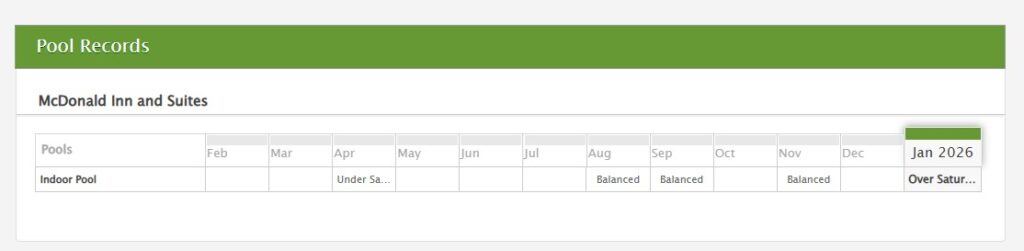
2. Click the box under the month you want to view to see the details.
3. From this page, you can see individual pool readings from the selected month, as well as monthly averages. To see further details, click Details to the right of the individual reading you wish to view.
Pro Tip: You can use the pop-up menu generated by the Details link to edit any pool readings taken in the last 48 hours. After 48 hours, you will not be able to make any changes to the reading.
How to View Meter Records in the Readings App
1. From the Records page, locate the Utility Meter Records grid. This will show averages for the past twelve months.
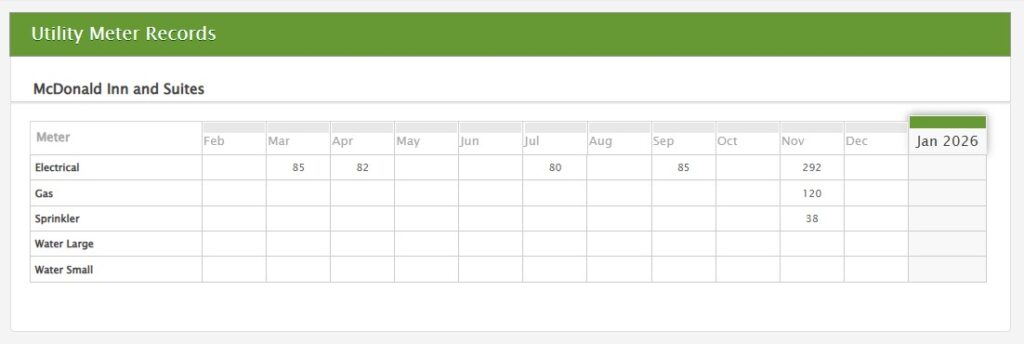
2. Click the box under the month you want to view to see the details.
3. If you wish to edit a reading, click Edit to the right of the individual reading.
4. Click Save Changes.
How to View Boiler Records in the Readings App
1. From the Records page, scroll down to view the Boiler Records grid. This will show you the average reading status by month for each boiler.
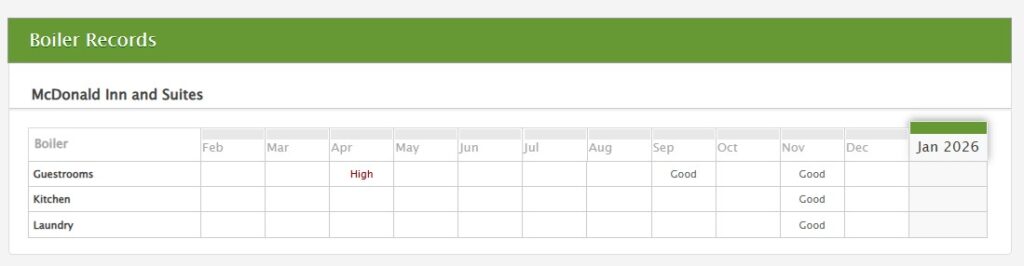
2. Click the box under the month you want to view to see the details.
3. To edit the details of an individual reading, click Edit to the right of the reading.
4. Click Save Changes.
How to View Area Records in the Readings App
1. From the Records page, scroll down to view the Area Temperature & Humidity Records grid. This will show you the average temperature and humidity percentage for each month.
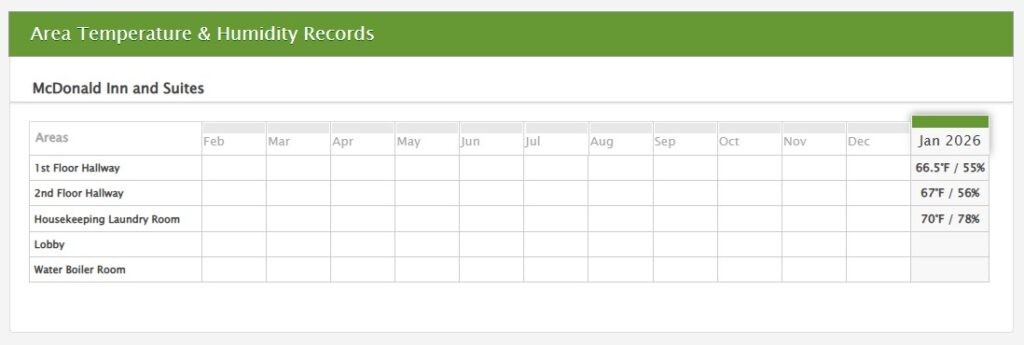
2. Click the box under the month you want to view to see the details.
3. To edit the details of an individual reading, click Edit to the right of the reading.
4. Click Save Changes.
Readings Records in the Reports App
You can access Readings records not only in the Readings app, but also by running a report from the Reports app in Quore. Follow the steps below to learn how.
1. From the Quore desktop app, navigate to Reports from the App Switcher.
2. Click on Readings from the Report Library.
3. Select the report you want to view.
4. Filter by Property, Posted by, and Posted Between dates.
5. Click Run Report.

