

In this article, you will learn how to customize your settings in the Readings app to match the frequency with which you take pool, meter, boiler, and area readings.
SECTIONS:
How to Edit Pool Settings
How to Edit Meter Settings
How to Edit Boiler Settings
How to Edit Area Settings
How to Edit Pool Settings
1. From the desktop Readings app, click the Pool tab.
2. Locate the grid for the pool you wish to edit settings for.
3. Click Edit.
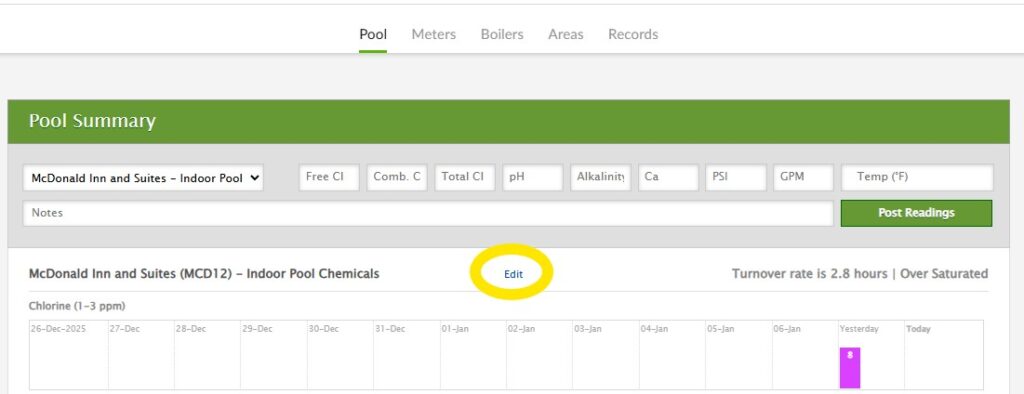
4. Here you can update the Name, Gallons, Pool Type, Chemical Type, and Daily Readings amount. You can also add Notes and assign the reading to a different Department, which will determine which team see it on their To Do List.
5. Click Save Changes when finished.
How to Edit Meter Settings
1. From the desktop Readings app, click the Meters tab.
2. Locate the grid for the meter you wish to edit.
3. Click Edit.
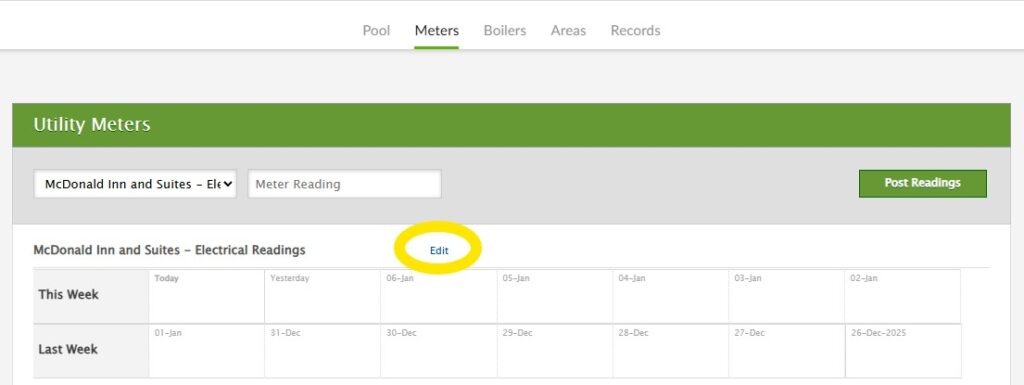
4. Here, you can change the Name and Daily Readings amount. You can also assign the reading to a different Department, which will determine which team sees it on their To Do List.
5. Click Save Changes when finished.
How to Edit Boiler Settings
1. From the desktop Readings app, click the Boilers tab.
2. Locate the grid for the boiler you wish to edit.
3. Click Edit.
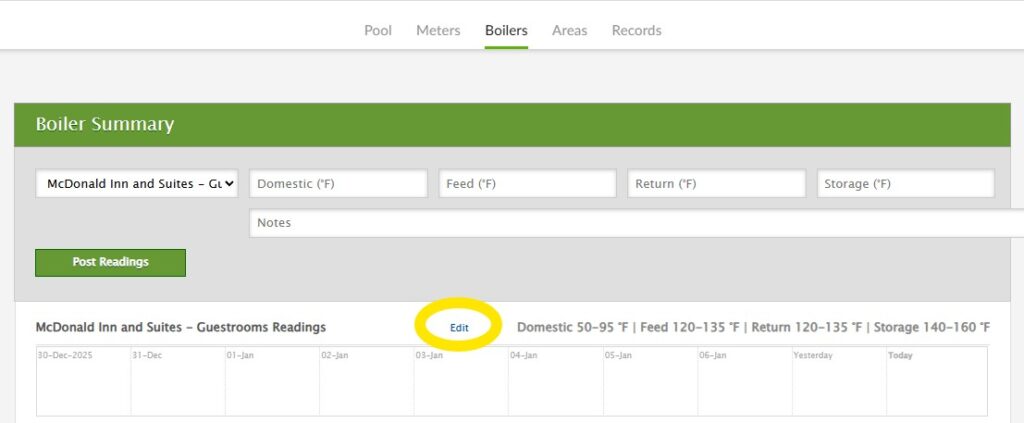
4. Here, you can edit the Name, Domestic, Feed, Return, Storage, and Daily Readings fields. You can also assign the reading to a different Department, which will determine which team sees it on their To Do List.
5. Click Save Changes.
How to Edit Area Settings
You’ll need to add areas before they appear in the Areas section of Readings. To Add and Manage Areas:
1. From the desktop Readings app, click the Areas tab.
2. Click Manage Areas.
Note: Only chief engineers, management, and corporate team members will have the Manage Areas option.
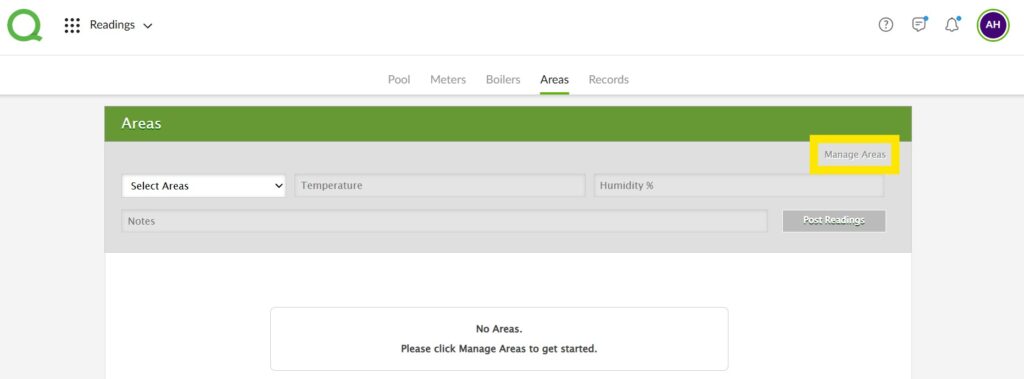
3. Click + Area, then type the name of the area in the Area Name field.
4. Click Update Area Temperature & Humidity Areas to save updates.
Note: Unchecking the box in the Active column next to a reading removes the area from the Areas and Records pages. Users will be unable to submit new readings or view historical data for inactive areas. Be sure to click the Update Area Temperature and Humidity Areas button to save your changes.
To Edit Areas:
1. From the desktop Readings app, click the Areas tab.
2. Locate the grid for the area you wish to edit.
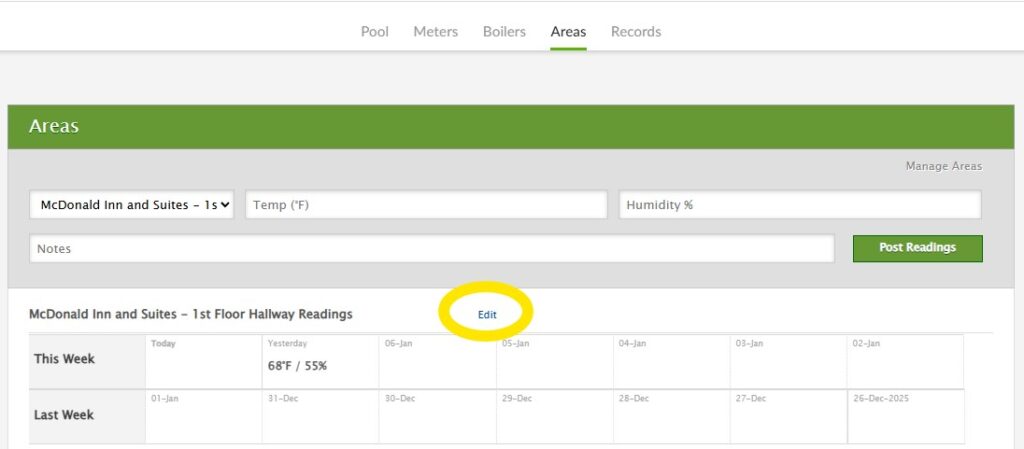
3. Here, you can update the Name and Daily Readings fields. You can also assign the reading to a different Department, which will determine which team sees it on their To Do List.
4. Click Save Changes.
Pro Tip: If the Daily Readings value is set to 0, the reading will not appear as a reminder on the assigned department’s To Do List.
If you are missing any readings, please contact Quore Support at support@quore.com or your dedicated Customer Solutions Specialist for assistance in adding them to Quore.


