

In this article, you will learn how to track CapEx records.
CapEx Records (CapEx App)
Follow the steps below to view closed CapEx records in the CapEx app, including Paid, Cancelled, and Rejected requests.
1. Log in to Quore on the desktop and click on the App Switcher. Scroll down and click on the CapEx app.
2. Click Closed. Use the Filter Request button to view specific closed CapEx requests. This page will show you completed and rejected requests, but the requests you see will depend on your access level within CapEx.
3. Click Binder to run a report. Enter the budget year, status, inflation percentage, format (either Excel which is editable, or PDF which is view-only), and the report orientation.
4. Click Generate Binder.
5. Click on the link generated to download and view your report with the specified information.
Pro Tip: If you are part of the CapEx flow, you can also see approved requests on the Approved page in the CapEx app.
CapEx Reports (Reports App)
In addition to managing requests from within the CapEx app, you can generate a report in the Reports app for all CapEx requests. This report can be filtered by property, request type, request category, status, and date range. Follow the steps below to learn how to access this report.
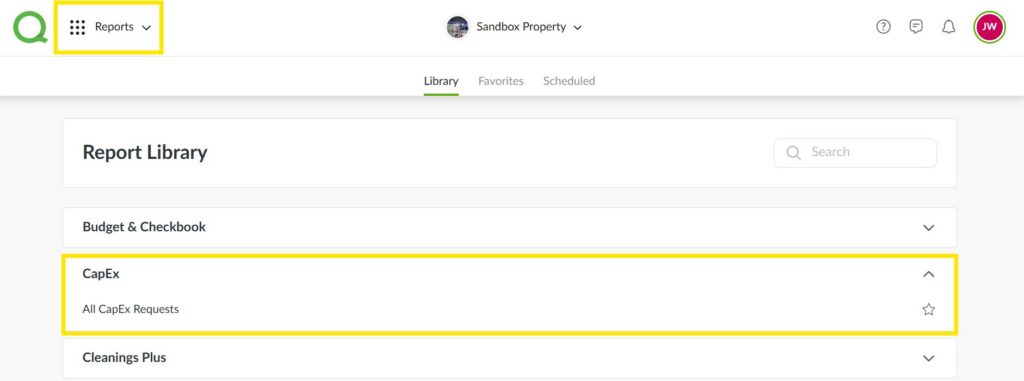
1. Log in to Quore on your desktop, open the App Switcher, and select the Reports app.
2. From the Report Library, click on the CapEx row to access the All CapEx Requests report.
3. Filter all report fields.
4. Once you have applied the filters, click Run Report.
Pro Tip: Click Schedule Report to have this report emailed to you and other recipients on a recurring basis.

