

After your company’s CapEx flow has been set up, users who are included in the flow can easily create CapEx requests. In this article, you will learn how to create a CapEx request from the desktop.
How to Create and Submit a CapEx Request from the CapEx App
Watch this short video to learn how to create and submit a CapEx request from the CapEx app.
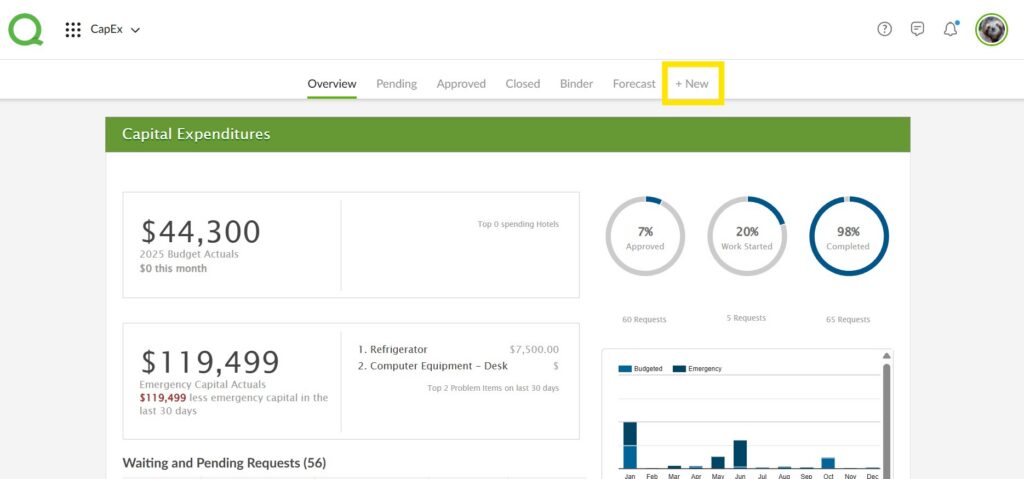
1. From the desktop, open the CapEx app and click + New.
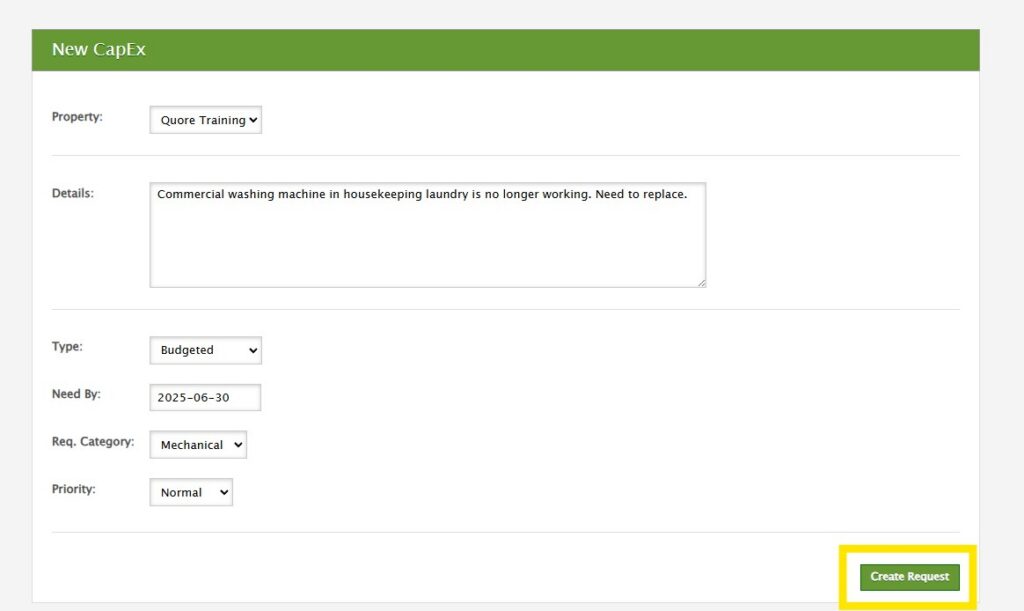
2. Use the fields to select your property, add details about the request, select the request type, category, and priority level. You will see four request types to choose from:
- Budgeted – This is the type of request that is planned and worked into the existing budget.
- Unbudgeted – Non-urgent requests, but not worked into the current budget.
- Emergency – Requests needed right away.
- Future Request – Use this request type for non-urgent requests or requests you want to document before all information, such as vendor bids, is available. Once approved, these requests become Budgeted requests.
3. When finished, click Create Request.
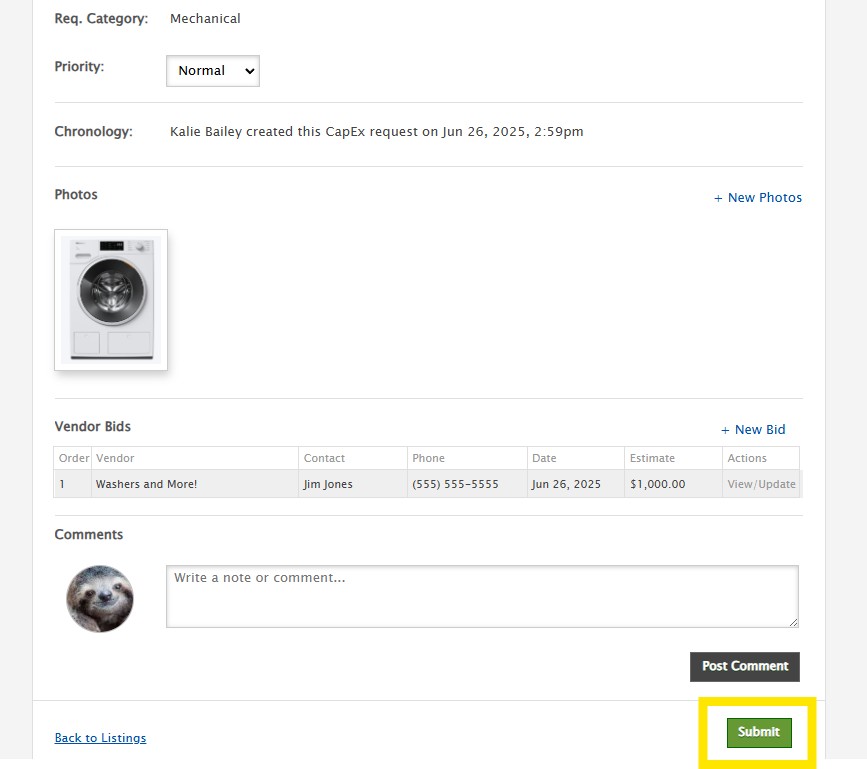
4. Fill in all fields on the next page. Some fields will already be filled in for you from the previous step.
5. Click + New Photos to attach pictures and + New Bid to attach vendor bids. Add comments (optional) and click Submit when finished.
Note: Bids are associated with vendors. Vendors can be created within the CapEx app while submitting a request or through the Directory app.
6. The request will then be submitted to the next person in the flow. If you need to edit or delete the request after it has been submitted, the next person in the flow will need to click the Amend or Reject button, then Request More Information to get it back into your hands.
How to Submit a CapEx Request from a Work Order
Please note that this option is only available to property-level users.
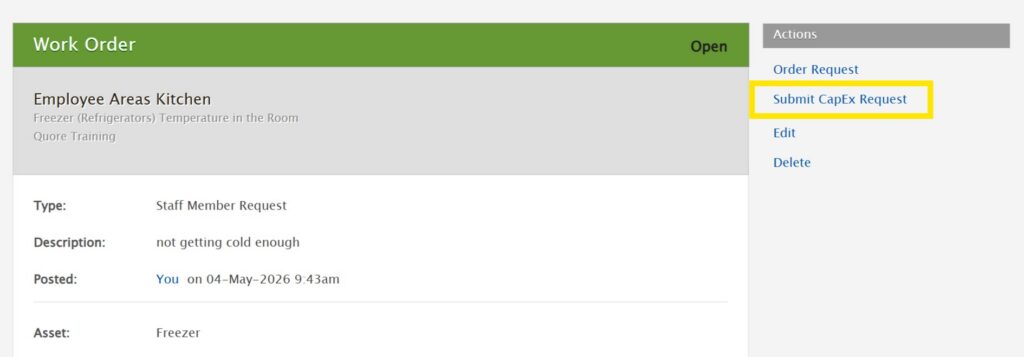
In addition to submitting CapEx requests in the CapEx app, you can also submit them directly from a Work Order to streamline the process. To do this, open the To Do app and either create a new Work Order or select an existing one, then click Submit CapEx Request.
Note: You will receive an email if a request has been submitted directly to you and requires your action, or if you’ve been involved in the approval process for the request and the status is updated further along the chain.


