As a CapEx request progresses through different stages, you can track the status of the request using the CapEx app.
How to Track a CapEx Request
If a CapEx request is submitted to you, you will receive an email from Quore suggesting that you review the request in the CapEx app.
1. When you open the CapEx app on the desktop, the first page you will see is the Overview page. Scroll down to view Waiting and Pending Requests or Approved Requests Waiting for My Action.
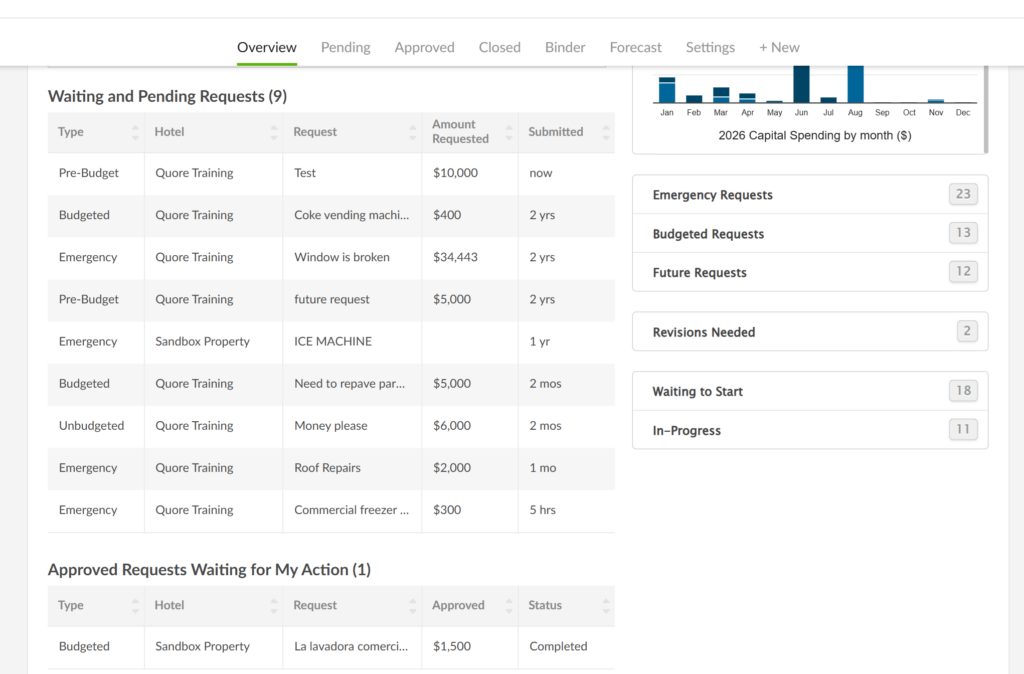
2. Click on the request you wish to see details for. From the CapEx Request page, view the Flow Process on the right. The bold text shows you what stage of the process this request is in.
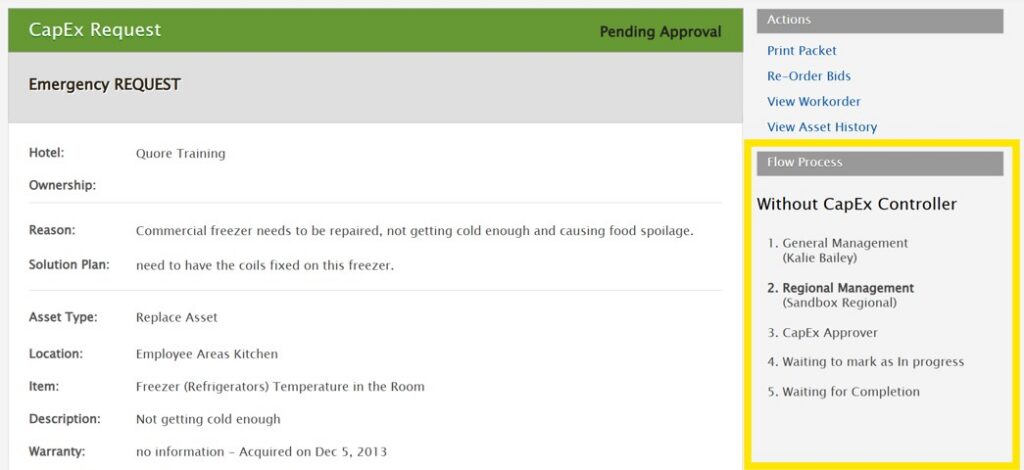
3. If the request has entered a stage in the flow process you are responsible for, you can scroll down to take action such as marking the request as in progress, approving requested amounts, submitting to the next level of the flow, or amending or rejecting the request. Learn more about how to take these actions below.
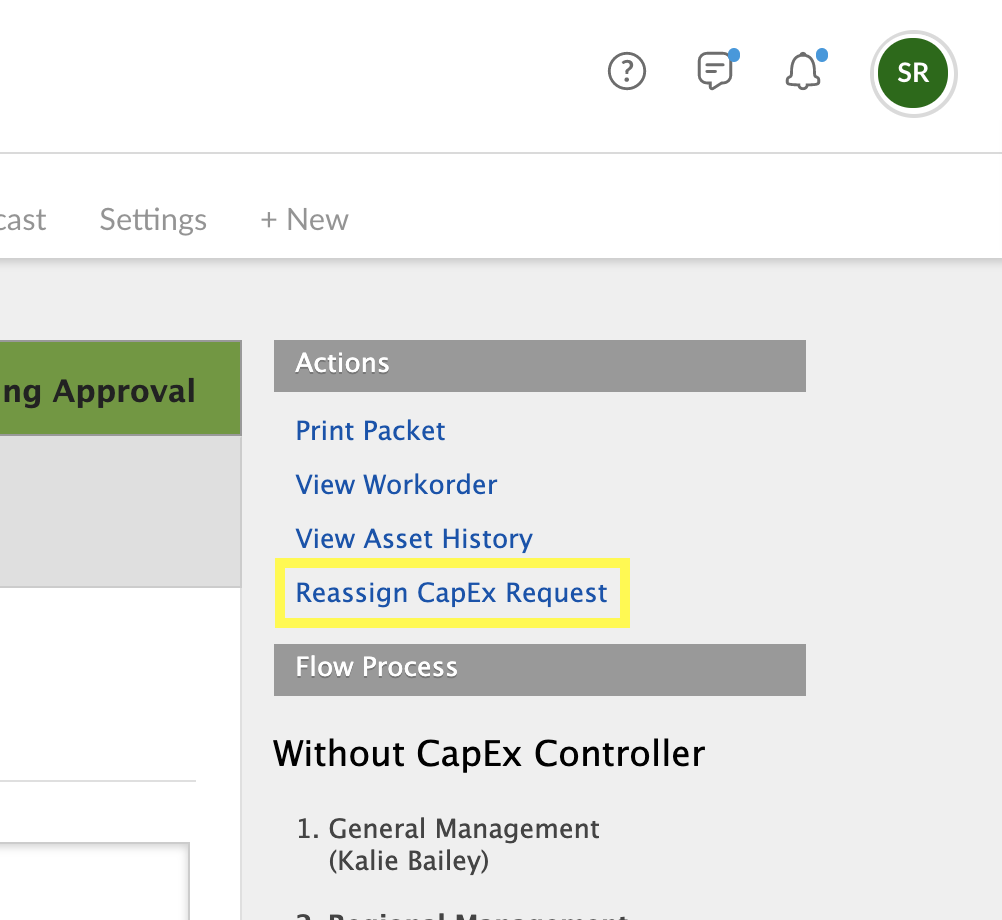
Note: A request can be reassigned if the assignee is not available to move it in the flow. Simply click Reassign CapEx Request to keep things moving. How your company’s flow is set up and what step it is in the flow will determine who is available for reassignment and if you can perform this action.
How to Amend or Reject a CapEx Request
If a CapEx request is submitted to you, it may sometimes lack necessary information, such as additional context, photos, or vendor bids. In these cases, you can click Amend or Reject on the request.
To Amend a Capex Request:
1. At the bottom of the CapEx request page, click Amend or Reject.
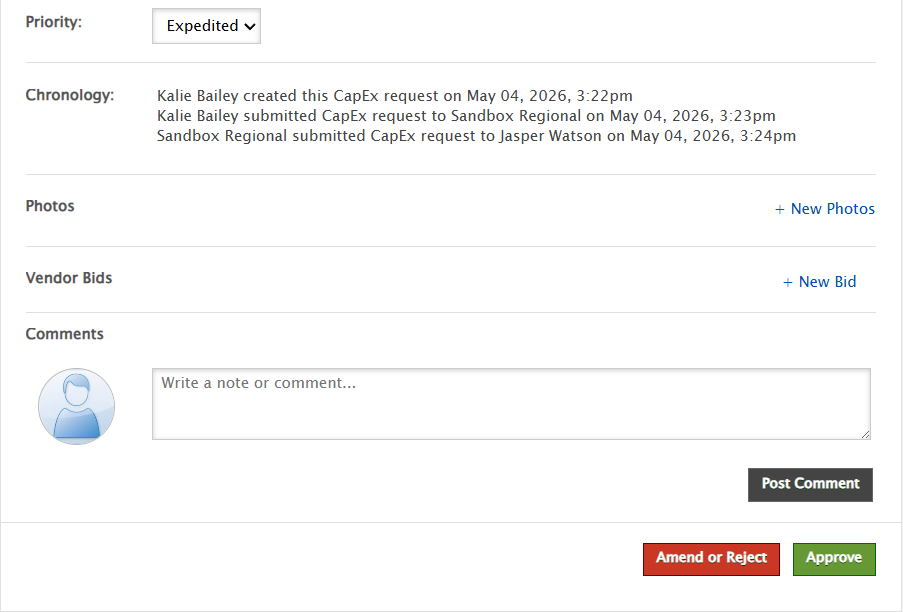
2. Choose Request More Information from the dropdown.
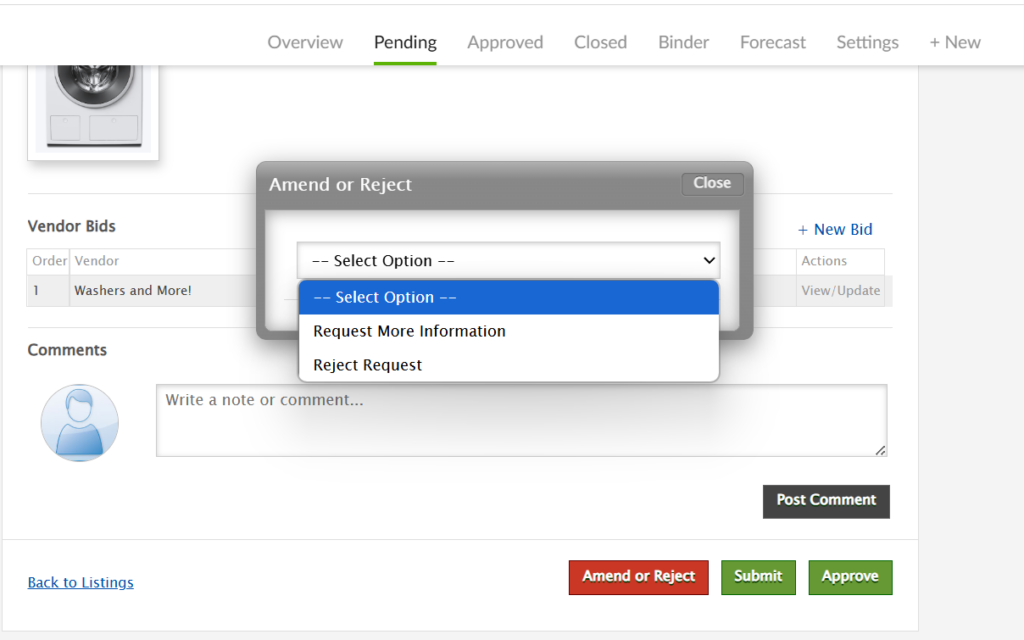
3. Once you select Request More Information, you can choose the requester from the dropdown and enter details on what needs to be updated. Click Request Amendment.
After you click Request More Information, the requestor receives an email and can view the request—along with your entered details—on the CapEx Overview page. The request status updates to Needs Revision, allowing the requestor to revise and resubmit it for your approval.
To Reject a Capex Request:
1. At the bottom of the CapEx request page, click Amend or Reject.
2. Choose Reject Request from the dropdown.
3. Selecting Reject Request will allow you to reject the request completely rather than requesting more information.
4. Rejecting a request will move it to the Closed section of the CapEx app.
Upon rejection, the requester will receive an email with the details of the request, including the name of the user who rejected the request, in addition to a link that will take them to that request.
Note: Closed requests cannot be modified or reopened. Click on the request to view the reason it was closed, as well as the full history, including who rejected it, when, and any comments they provided. If you need additional information, select Request More Information instead of rejecting the request.
How to Approve a CapEx Request
1. To approve a request, click on it from either the Pending page or the Overview page listed under Waiting and Pending Requests.
2. Scroll to the bottom of the request page and click Approve.
3. Confirm the Approved Amount and enter the Execute On date. Select the Preferred Bid (if applicable), then click Submit. The requester will receive an email that the CapEx request has been approved.
4. After clicking Submit, the request moves to the Approved page, where it waits to be marked as In Progress by the requester. The approver can also mark the request as In Progress if needed.
5. After marking the request as In Progress, the final step is to mark it Completed, then Paid. All three of these steps can be done from the Approved page.
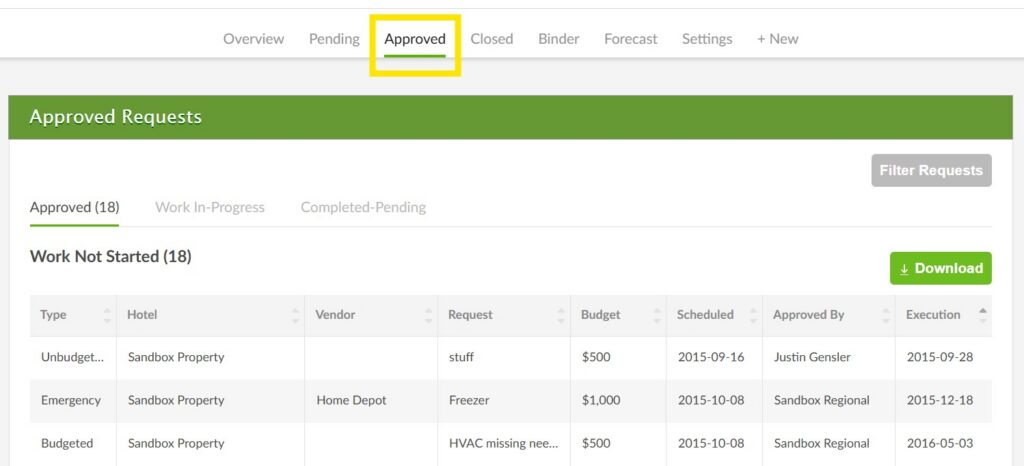
You will recieve an email for each of these actions if you are a part of the CapEx flow.