

In this article, we will explain the two ways guests can enroll in Quore Connect.
How to Enroll at the Front Desk
1. Click the App Switcher in the top right corner, then click the Connect app.
2. Click the guestroom number on the Rooms Grid.
3. Enter the guest’s phone number or hotel rewards number and click the magnifying glass icon to search for the guest.
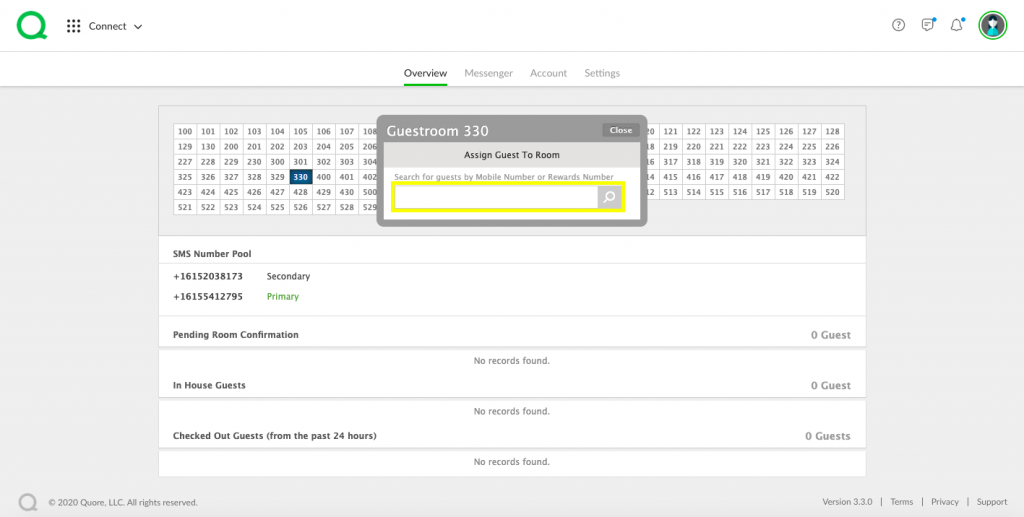
Pro Tip: You will have to ask or verify the guest’s mobile or rewards number here. Make sure they understand that message and data rates may apply.
4. If the guest has never been enrolled in the Connect app before, you will need to fill out all relevant fields and click the Assign Room button to create a new account.
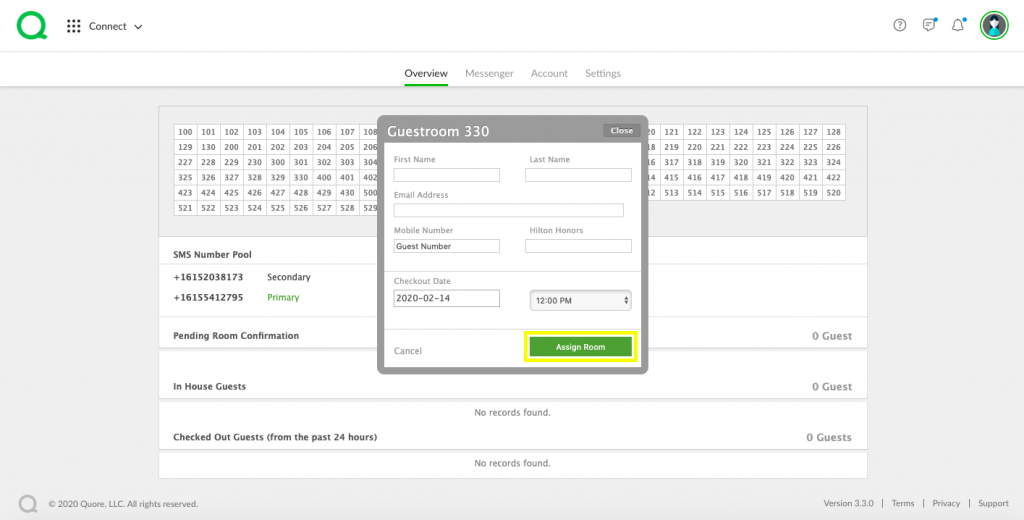
Pro Tip: The guest will receive a welcome message after they are assigned to a room, initiating the conversation.
If a Guest Texts from Their Room
If your hotel rooms have tent cards displaying your Connect number, or if the guest has previously enrolled at your property, they may send a text message directly to you. When this happens, their information will appear in the Pending Room Confirmation section of the Connect Overview page.
After verifying the guest’s reservation details in your hotel’s Property Management System (PMS), enter the correct information and click Assign. Once assigned, the guest will move to the In House Guests section.


