

PMS Integrations
In this article, you will learn how Quore integrates with your PMS to provide up-to-date information on occupancy status, cleanliness status, and guest stay details.
Introduction
Quore PMS Integration Areas
Dashboard and Rooms Book App
Cleanings Plus App
PMs App
FAQ
Introduction
Quore integrates with the following property management systems:
- HotelKey
- Opera v5 via Concerto
- choiceADVANTAGE
- Oracle Opera Cloud
If your property uses one of the property management systems mentioned above and you would like more information about integrating Quore with your PMS, please contact Quore Sales at sales@quore.com or 615-678-0371.
Note: Properties must have the Cleanings Plus app to support PMS integration. Quore will not integrate unless the property is using Cleanings Plus.
Quore PMS Integration Areas
Once your property’s PMS is integrated with Quore, you will see information from your PMS in 4 different Quore areas: Dashboard, Rooms Book, Cleanings Plus, and PMs. While the Dashboard is desktop-only, Rooms Book, Cleanings Plus, and PMs are available on desktop and mobile.
Dashboard and Rooms Book App
The desktop Dashboard and Rooms Book app give you a clear view of your property’s room numbers, along with any open items and Room Notices. Click on any room to view the full info.
If a PMS integration is enabled, you can switch to the Status view to see PMS-related room data. Room occupancy and cleanliness statuses automatically update every 5 minutes when changes are made in either Quore or the PMS. This allows front desk staff to quickly check room status without opening the PMS separately.
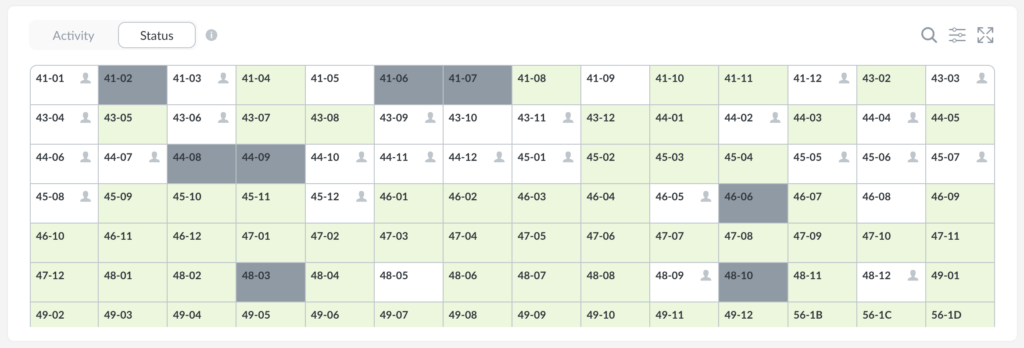
Below is what you’ll find there.
Info Key
- Select the Information (i) icon to the top-right of the Rooms Grid to view a key that explains what each color and icon represents.
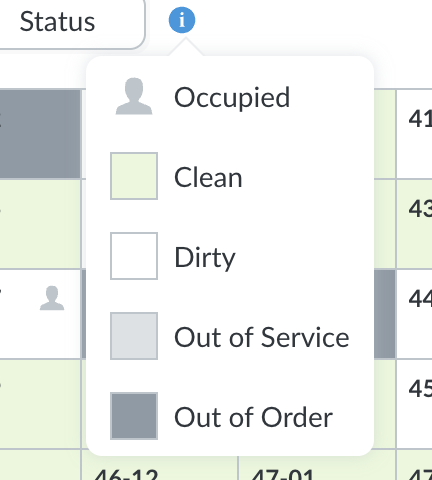
Occupancy Status
- Occupied rooms will show a gray guest icon.
Cleanliness Status
- White indicates that a room is Dirty.
- Green indicates that a room is Clean.
- Light gray indicates that a room is Out of Service.
- Dark gray indicates that a room is Out of Order.
Note: For IHG hotels, the IHG Greener Stay leaf will appear in place of the guest icon when a guest has opted into the Greener Stay program. This will only be shown for IHG properties that have this feature turned on.
Clicking into a room on the desktop Dashboard will display a popover where you can view more details on the room’s cleanliness and occupancy status. If the room is dirty, it will display a red spray bottle.
Inspection details from Cleanings/Cleanings Plus will also appear in the Activity section of the Rooms Grid popover. Click into any field to view the full details.
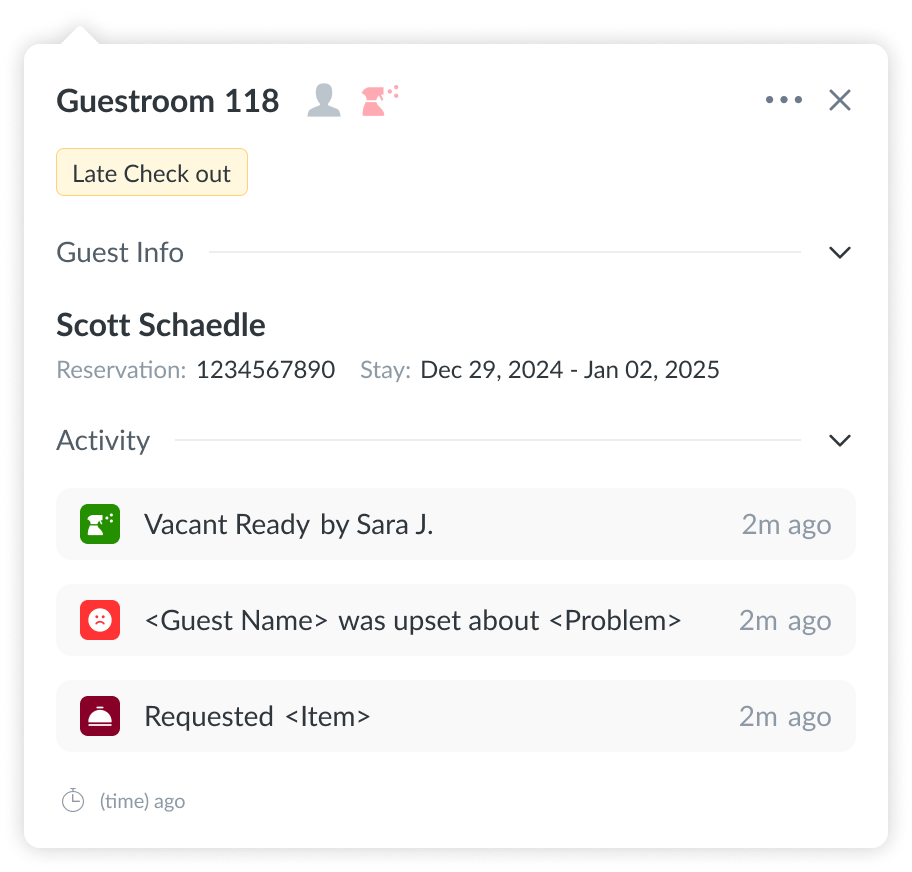
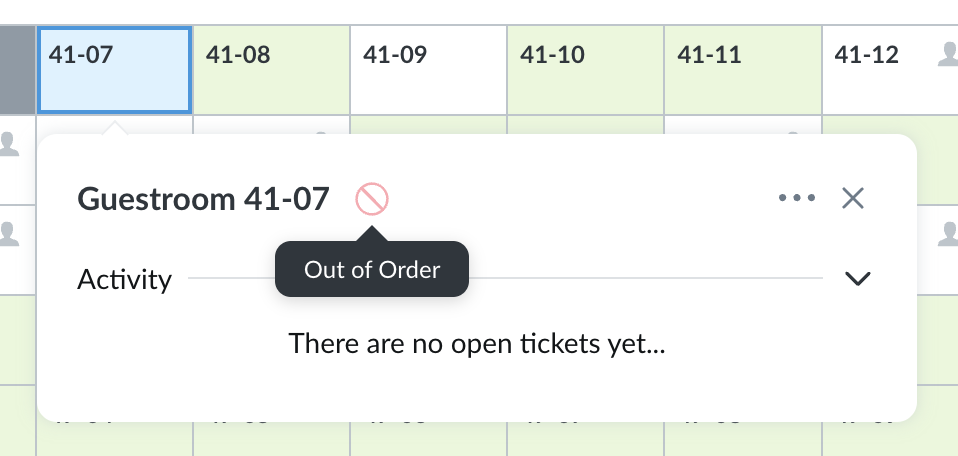
Out of Order and Out of Service Rooms
If you click into the room and it shows a circle with a diagonal slash, this indicates the room is Out of Order.
If you click into the room and it shows a circle with a horizontal slash, this indicates the room is Out of Service.
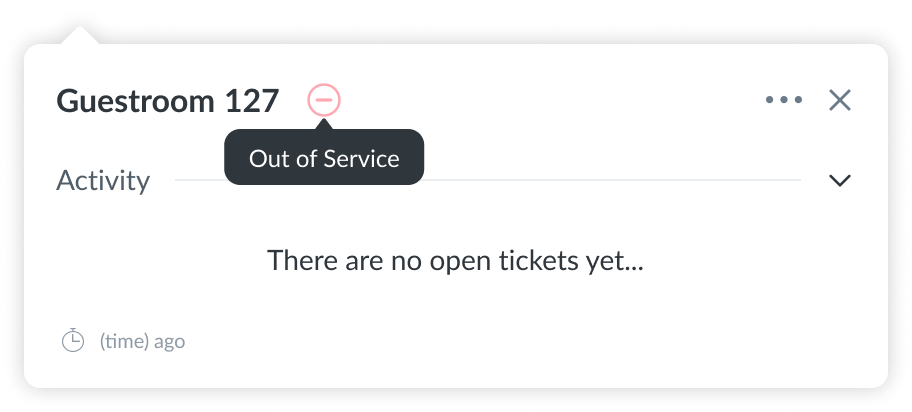
Simply hover over the element to see what it represents.
Guest Information
If available, guest information will also be displayed. This can include:
- Reservation number
- Check-in and checkout dates
Note: All PMS integrations should always display the reservation details for every occupied room at all times except for Opera v5 Concerto, which only displays reservation details on the day of departure.
Get Support
For additional questions regarding how PMS information is displayed in Quore, please contact Quore Support at support@quore.com.
Cleanings Plus App
Note: This section will show you how PMS integration works in Quore’s Cleanings Plus app. If you would like a deeper dive on Cleanings Plus, including how to manage your Cleanings Plus settings, please visit the Cleanings Plus article here.
When starting a new breakout in Quore from within the Cleanings Plus app, Quore’s PMS integration automatically pulls Stayover, Checkout, and Refresh information from the PMS, provided those cleaning types are enabled in your Cleanings Plus settings.
- To verify these settings, go to the Cleanings Plus app on the desktop and navigate to Settings > Cleaning Types, then confirm the cleaning types you want to use are enabled. You can disable any cleaning types you do not wish to use.
Understanding Checkouts, Stayovers, Refreshes, and Deep Cleans
Rooms in Cleanings Plus are organized into four cleaning types: Checkouts, Stayovers, Refreshes, and Deep Cleans. These categories help structure daily room assignments on your housekeeping boards in Quore.
Checkouts
- These are rooms that are Occupied with a checkout schedule for that day or are in status Vacant/Dirty. These are dark green in Cleanings Plus.
Stayovers
- These are rooms that are Occupied/Dirty and do not have a checkout scheduled for that day. These are lime green in Cleanings Plus.
Refreshes
- These are rooms that are in PickUp status that need small adjustments. These are maroon in Cleanings Plus.
Deep Cleans
- This cleaning type is reserved for rooms that are sorted by the system to be ready for your property’s deep cleans. Deep Cleans are purple in Cleanings Plus.
Cleanings Plus Breakouts
Now that you know which rooms from your PMS fall into which cleaning type category, check out the steps below to see how the Quore PMS integration works when it comes to Cleanings Plus breakouts.
1. From the desktop Cleanings Plus app, click + Start a Breakout.
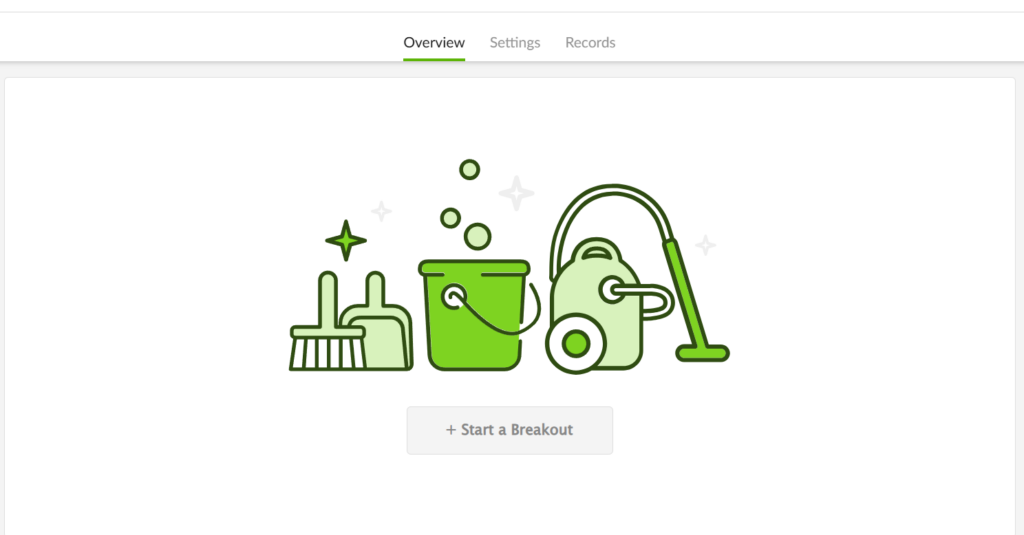
2. Checkout and Stayover rooms will auto-populate in their respective boxes. Refresh rooms will also auto-populate, if your property uses the PickUp option in your PMS. Deep Cleans rooms will need to be manually pulled over to their respective box.
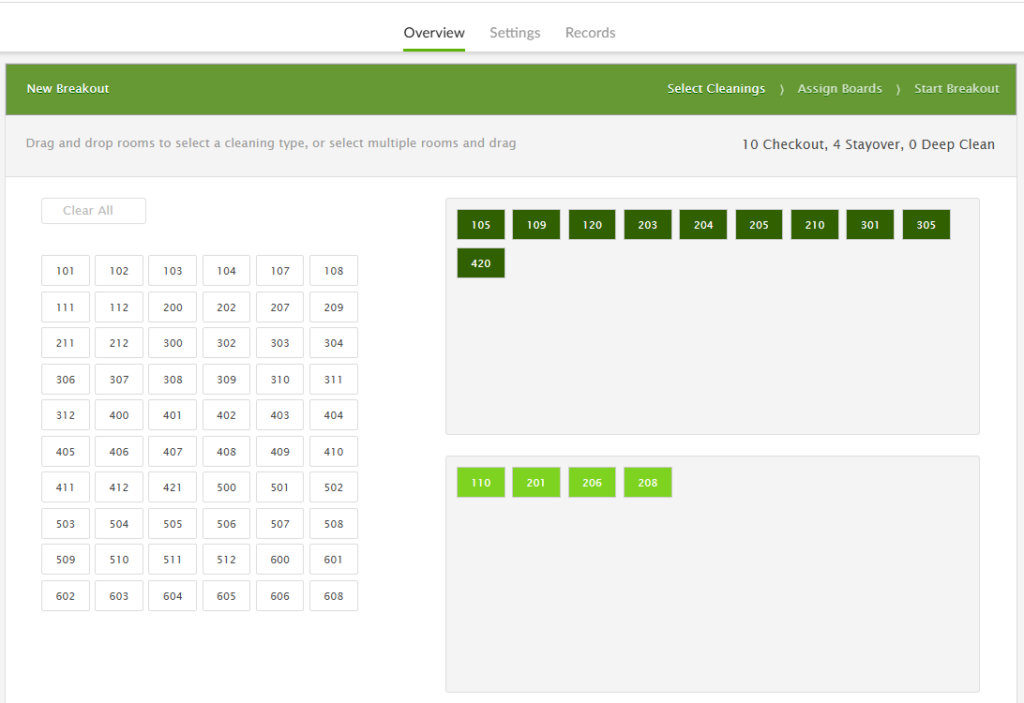
3. Although rooms will auto-populate, you will have access to move rooms as needed. When all rooms have been allocated to their appropriate boxes, click Next Step at the bottom of the page.
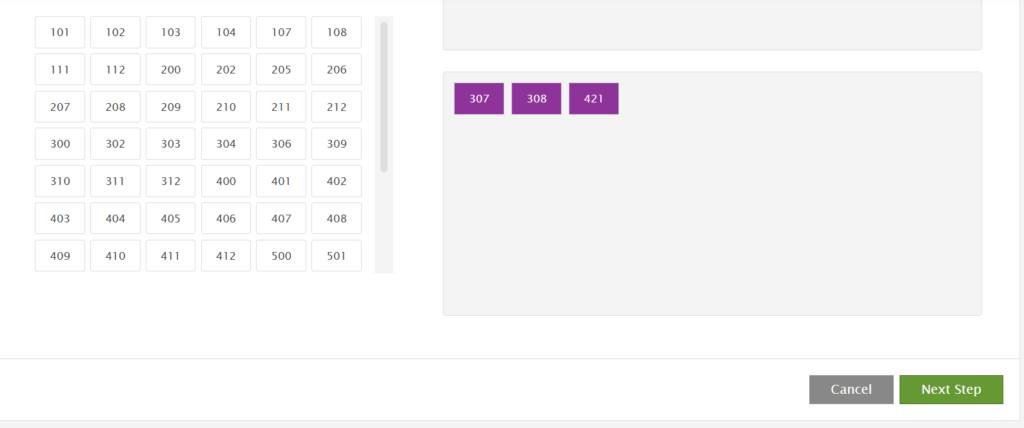
4. Once clicking next step, assign and rearrange rooms on boards as needed. Once you hit Start Breakout, housekeepers can see the latest room occupancy status, on the desktop and Quore mobile app.
- A blue dot indicates that a special project has been assigned to the room. Special projects are activated in your Cleanings Plus settings and are automatically assigned to rooms.
- A green dot indicates that the room has a Room Notice. Room Notices can be created in Quore through the Rooms Book app or during the breakout by selecting the room(s) where you want to add a Room Notice, then click Add Room Notice.
- Both special projects and Room Notices are visible in both the desktop and mobile apps.
5. Rooms do not auto-populate into Cleanings Plus from your PMS once a breakout has started. To add more rooms to your boards, use the Add Room option.
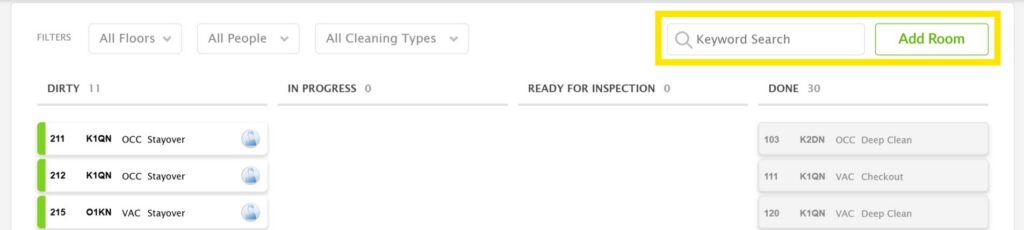
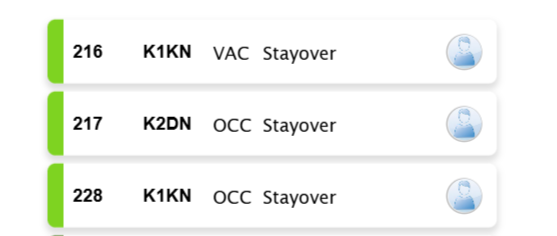
6. Rooms marked OCC indicate the room is Occupied. Rooms marked VAC indicate the room is Vacant.
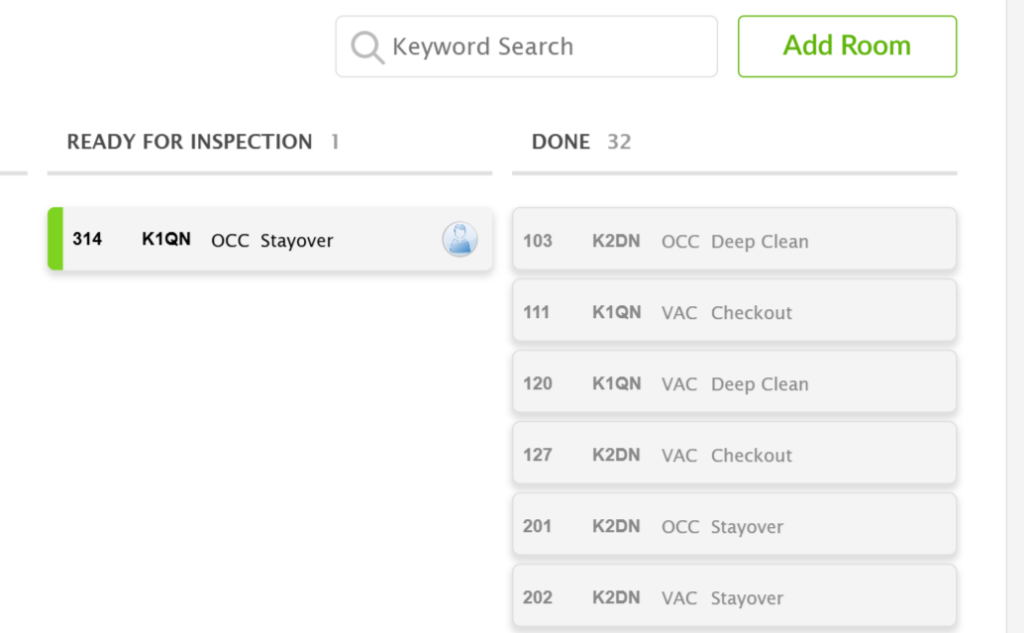
7. Once a room has been cleaned and successfully inspected in the Cleanings Plus app, it will show here in the Done column and its status will update from Dirty to Clean in the PMS.
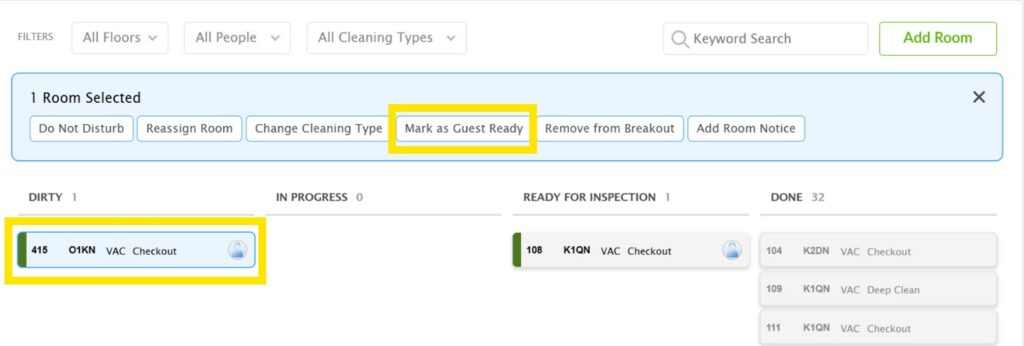
8. You can also select a room and Mark as Guest Ready to move the room to Done. This will update the room from Dirty to Clean in the PMS.
PMs App
Note: This section will show you how PMS integration works in Quore’s PMs app. If you would like a deeper dive on PMs, please visit the PMs app article here.
When Quore is integrated with your PMS, room occupancy status is displayed directly within Guestroom PMs in the PMs app on desktop and mobile. This allows engineers to easily identify whether rooms are vacant or occupied while completing preventative maintenance tasks. Continue learning below to learn how it works.
Desktop
See the steps below to learn where to find room occupancy status on the desktop PMs app.
1. Click on the App Switcher, then select PMs.
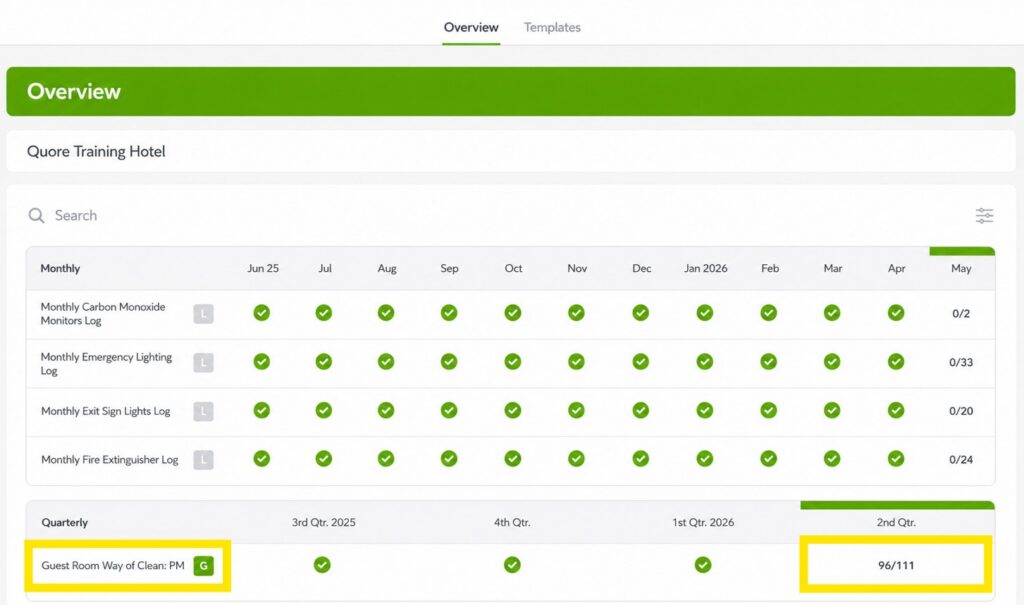
2. From the PMs app Overview page, click the numbers for the current period for the guestroom template. You will find the template name on the left. Guestroom templates have a G beside the name.
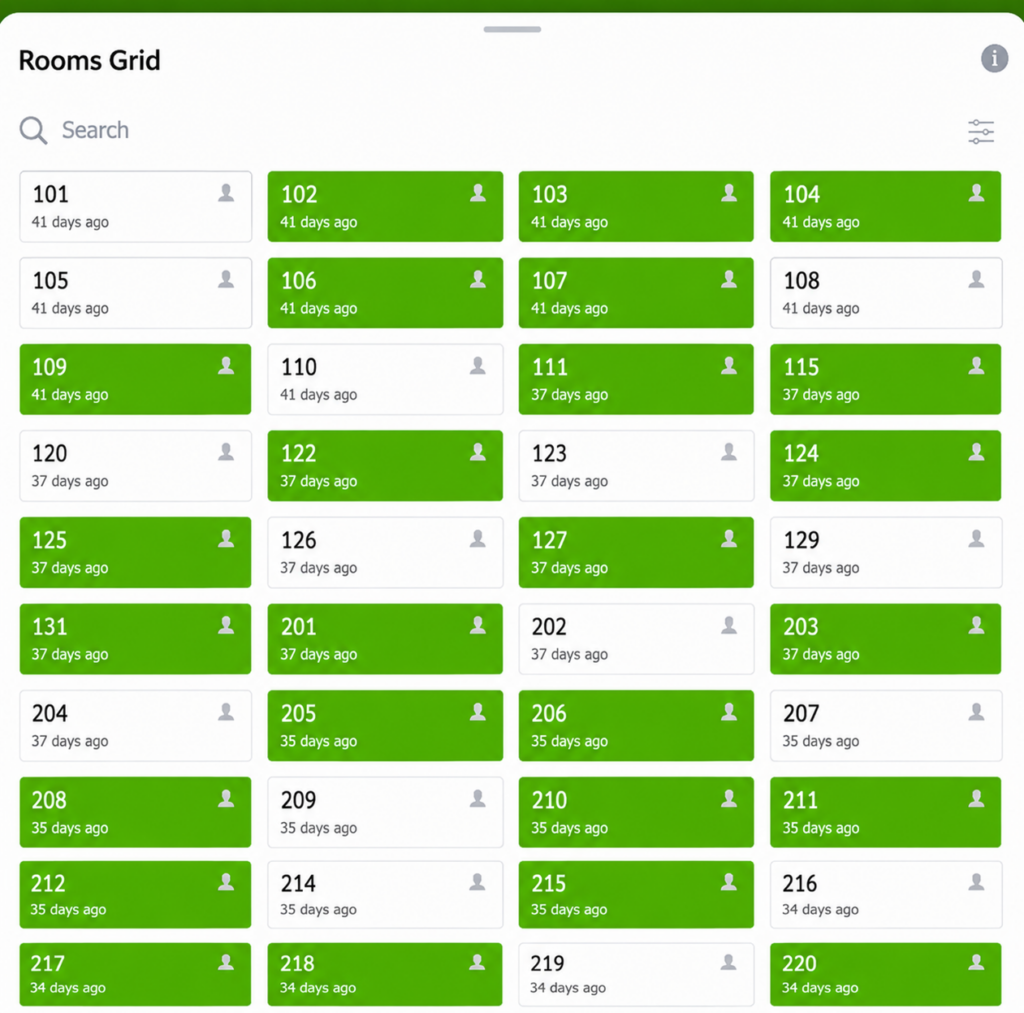
3. Once you click into the current period, a room grid appears displaying the status of rooms for the selected period.
- Completed rooms are highlighted in green, while rooms that still require completion appear in white.
- Occupied rooms display a gray guest icon. If the room you want to PM is Occupied, simply select another room.

4. Click on any room to complete the PM or view the record. Quore checks your PMS every 5 minutes for new updates.
Mobile
See the steps below to learn where to find room occupancy status on the mobile PMs app.
1. Log in to the Quore mobile app and select PMs from the App Switcher.
2. Select your property’s guestroom template.
3. Select the template again to view the Rooms Grid.
4. The Rooms Grid will show the status of the rooms.
- Completed rooms are highlighted in green, while rooms that still require completion appear in white.
- Occupied rooms display a gray guest icon.
5. Select any room to complete the PM or view the record. Quore checks your PMS every 5 minutes for new updates.
FAQ
Find answers to common questions about the Quore PMS integration below. Click here for a downloadable PDF.
How much does it cost?
- Pricing varies based on vendors. To integrate Quore with your PMS, all properties must purchase the Cleanings Plus app. Cleanings Plus pricing varies based on brand and room count. Reach out to Quore Sales at sales@quore.com or 615-678-0371 for more information.
What are the prerequisites?
- Properties must have Cleanings Plus for their Quore to integrate with their PMS. Cleanings Plus pricing varies based on brand and room count. Reach out to Quore Sales at sales@quore.com or 615-678-0371 for more information.
How do I connect my PMS with Quore?
- Reach out to Quore Sales at sales@quore.com or 615-678-0371 for more information.
- IHG properties and HotelKey will need to go to IHG Marketplace to initiate the integration.
How long does it take to connect my PMS with Quore?
- The time varies depending on the PMS vendor’s process.
- The two platforms check for new updates every five minutes, although the original syncing of rooms can take longer than five minutes.
Which Quore apps does my PMS integrate with?
- Dashboard (Rooms Grid), Rooms Book, Cleanings Plus, and PMs.
If room occupancy status changes in my PMS, will that update in Quore?
- Yes, when a room changes occupancy status (i.e., from Vacant to Occupied), this will update in Quore.
If room cleanliness status changes in my PMS, with that update in Quore?
- Yes, when a room cleanliness status change (i.e., from Dirty to Clean), this will update in Quore.
What triggers the room to update cleanliness status room dirty to clean in the PMS?
- The PMS receives an update when an inspection is successfully completed or when the room is marked as Guest Ready in Cleanings Plus.
Who do I reach out to if my integration is not working properly?
- If your Quore PMS integration is not working properly, please contact our support team at support@quore.com or 877-974-9774.
Get Support
If you’re running into an issue with your PMS integration with Quore, please contact Quore Support at support@quore.com or 877-974-9774.


