

The To Do app’s Task feature is best utilized as a way of scheduling reminders for yourself or other staff.
SECTIONS:
How to Create Tasks on the Desktop
How to Start Tasks on the Desktop
How to Complete Tasks on the Desktop
How to Create Tasks on Mobile
How to Start Tasks on Mobile
How to Complete Tasks on Mobile
This helps staff stay on schedule and complete their day-to-day responsibilities. You can set tasks as one-time activities or set them to recur.
In this article, you will learn how to create, start, and complete tasks from the desktop and mobile versions of the To Do app.
Desktop
How to Create a Task (Desktop)
1. From the desktop Dashboard, click + To Do.
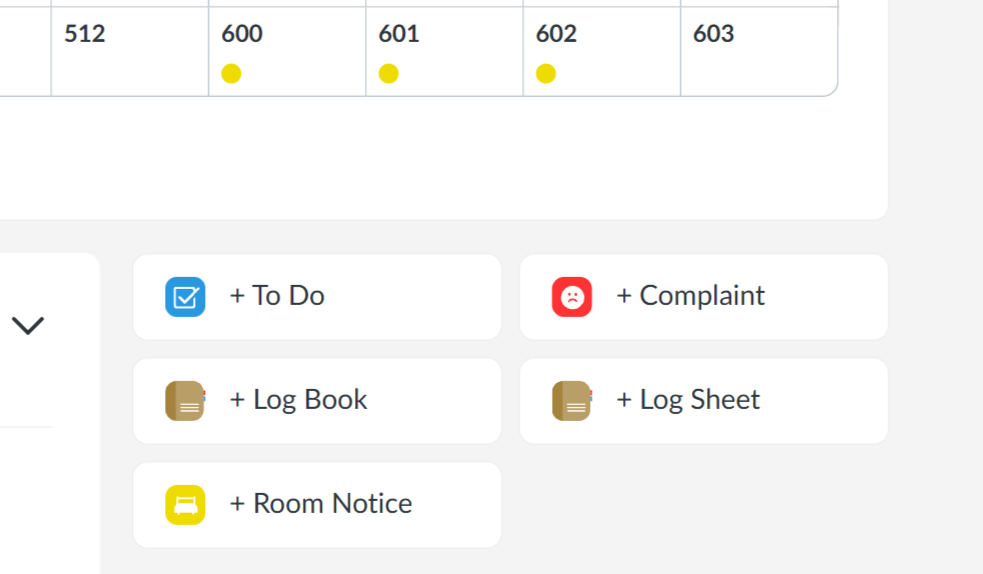
2. Click Task.
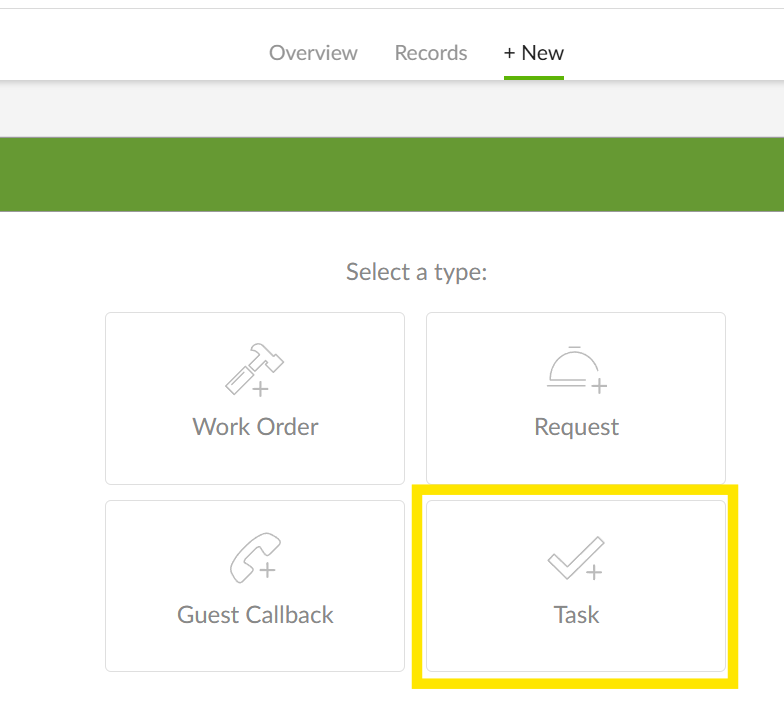
3. Enter the name of the Task.
4. Select the appropriate category from the Category dropdown. If you are creating a recurring task, you will have the following options to choose from in the Frequency dropdown:
-
Daily
-
Weekly
-
Monthly
-
Quarterly
-
Semiannually
-
Annually
Pro Tip: You can also choose to be reminded of a recurring Task a certain number of days in advance by entering a number in the Reminder field. Please note, in order for a daily recurring Task to appear on the To Do List each day, the task must have been completed the previous day.
5. Add any relevant notes, if you wish.
6. Assign the Task to a Department, Person, or Anyone.
7. When you have entered all information, click Post To Do.
How to Start Tasks (Desktop)
1. From the To Do app, locate the Task on the Overview page. Click into the Task to view the full details.
2. Once you have reviewed the details, click Start.
How to Complete Tasks (Desktop)
1. From within the Task, click Close.
Pro Tip: Click Pause if you need to leave the Task on your To Do List to resume at a later time.
2. Post any additional notes and click Finish.
3. Task records can be found in the Reports app from within the Tasks section.
Mobile
How to Create Tasks (Mobile)
1. From the mobile To Do app, tap the + icon in the bottom-right corner of your screen.
2. Tap Task.
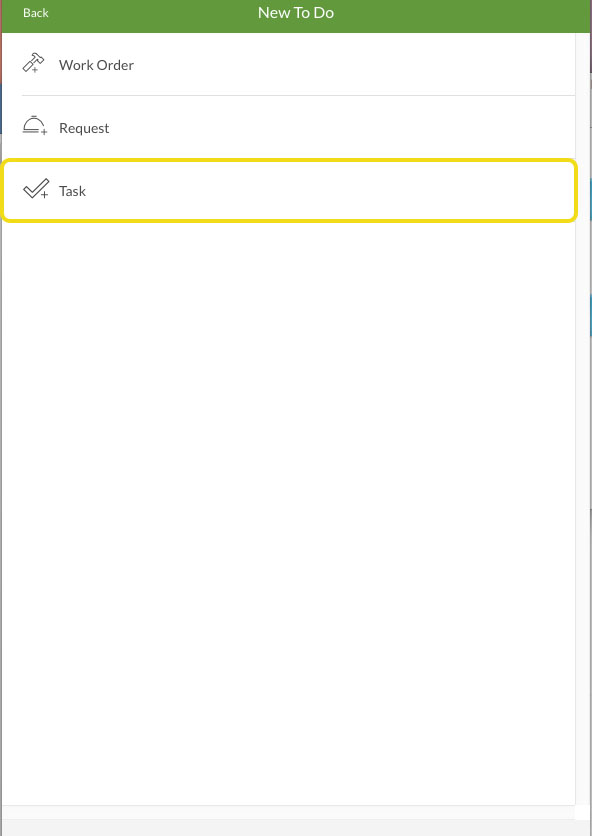
3. Enter the name of the Task.
4. Select the appropriate category from the Category dropdown in the Details section. If you are creating a recurring Task, you will have the following options to choose from in the Frequency dropdown:
-
Daily
-
Weekly
-
Monthly
-
Quarterly
-
Semiannually
-
Annually
You can also choose to be reminded of a recurring Task a certain number of days in advance by entering a number in the Reminder field. Please note, in order for a daily recurring Task to appear on the To Do List each day, the Task must have been completed the previous day.
5. Add any relevant notes, if you wish.
6. Assign the Task to a Department, Person, or Anyone.
7. When you have entered all information, tap Post.
How to Start Tasks (Mobile)
1. From the mobile To Do app, locate the Task you wish to start and tap on it to open it.
Pro Tip: You can see all Tasks on your To Do List by using the Filter icon in the top-left corner. Select the Type as Task from the dropdown menu.
2. After you have opened the Task, tap Start To Do.
How to Complete Tasks (Mobile)
1. After opening a Task, tap the red Complete button to close it out.
2. Quore will prompt you to add any final notes.
3. Tap the Complete button to close out the Task. This will remove it from your To Do List.
4. Task records can be found on the desktop in the Reports app from within the Tasks section.


