Daily Manager Report
In this article, you will learn how to use the Daily Manager Report to view key operational updates, track activity across your team, and stay informed on what’s happening at your property.
SECTIONS:
Overview
Scheduling the Daily Manager Report
Best Practices
Overview
The Daily Manager Report gives you a clear view of what happened yesterday so you can lead today with confidence. Instead of piecing together updates from different places, everything is brought into one simple snapshot. View the report in your browser at any time, or have it delivered to your email each day. When viewing the report in your browser, click any Work Order or Request to open it in Quore and take action.
You’ll find the Daily Manager Report in the Management section of the Reports app. This report is available to:
- Corporate Management
- Regional Management
- Property Management
- Chief Engineers
- Executive Housekeepers
- Front Desk Managers
Customize your report by selecting categories based on your role. Available categories include:
- Complaints – Number of Complaints created the previous day.
- Log Book Activity – All entries posted the previous day (deleted entries excluded).
- Lost Items – Lost items recorded in the Lost & Found app.
- Preventative Maintenance (PMs) – Completed PMs by type (Guestroom (Primary), Life Safety, Building, Mechanical).
- Readings – Pool, spa, and boiler readings recorded the previous day.
- Requests – Open and past due Requests, plus new ones created the previous day.
- Room Notices – Room Notices created the previous day.
- Front Desk Tasks – Open and past due Tasks assigned to Front Desk, plus new ones created the previous day.
- Work Orders – Open and past due Work Orders, plus new ones created the previous day.
Note: Available categories to choose from vary by title.
Scheduling the Daily Manager Report
To make the Daily Manager Report part of your daily routine, schedule it to arrive in your inbox automatically.
Follow the steps below to learn how to schedule the Daily Manager Report.
1. Log in to Quore on your desktop, then select Reports from the App Switcher next to the green Q.
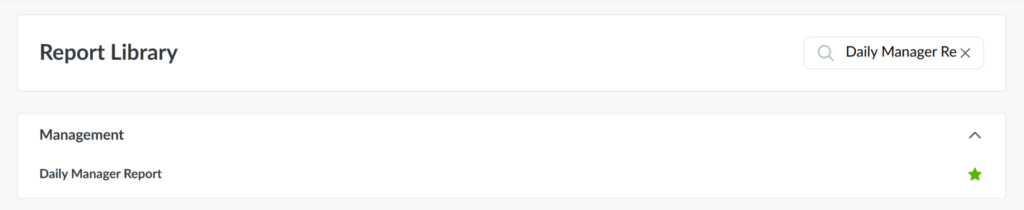
2. Once in the Reports app, search for Daily Manager Report.
Pro Tip: For quick access, click the star to save the report to your Favorites.
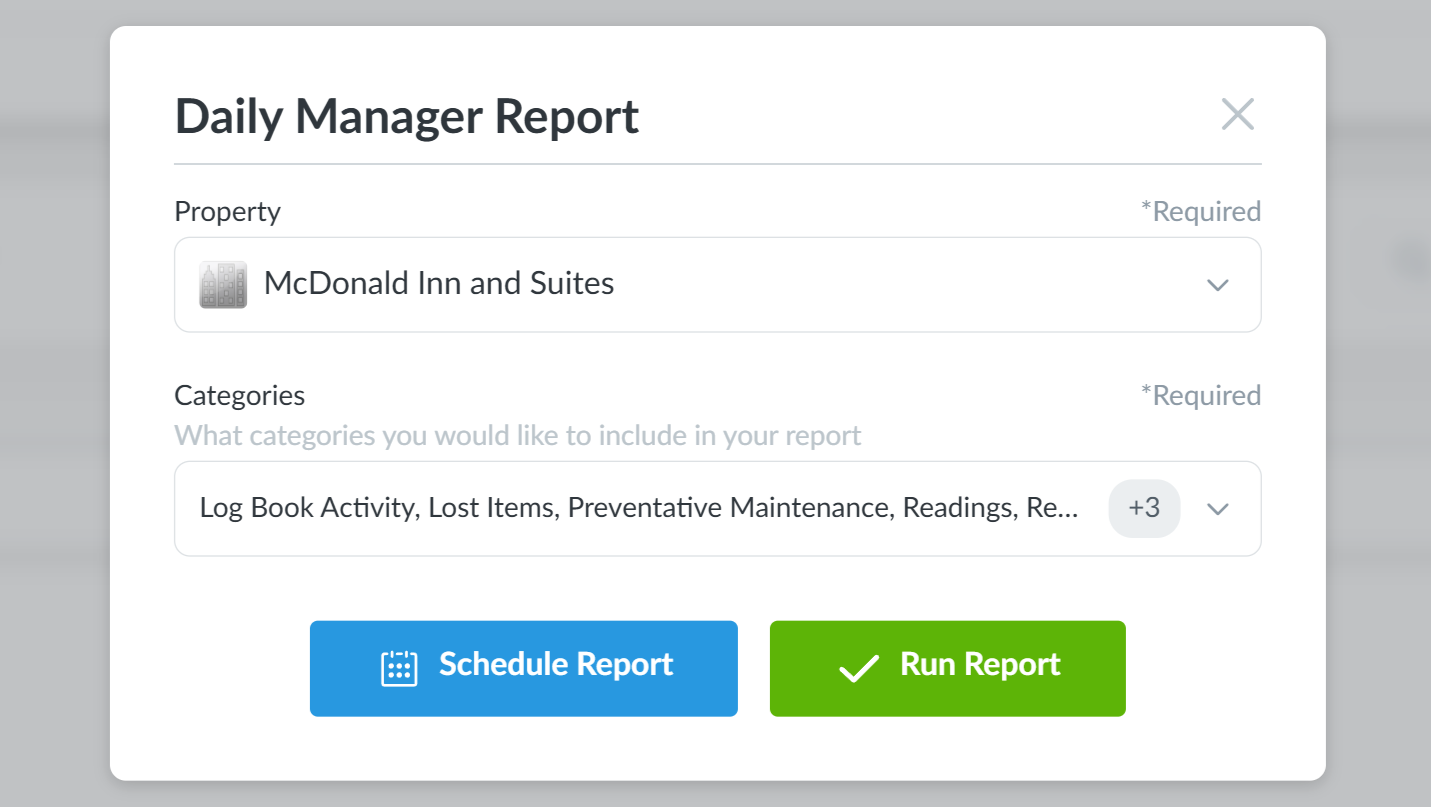
3. Select the Property and Categories you would like to include in your report. If you manage multiple properties, you’ll need to create a separate schedule for each one. Click Schedule Report.
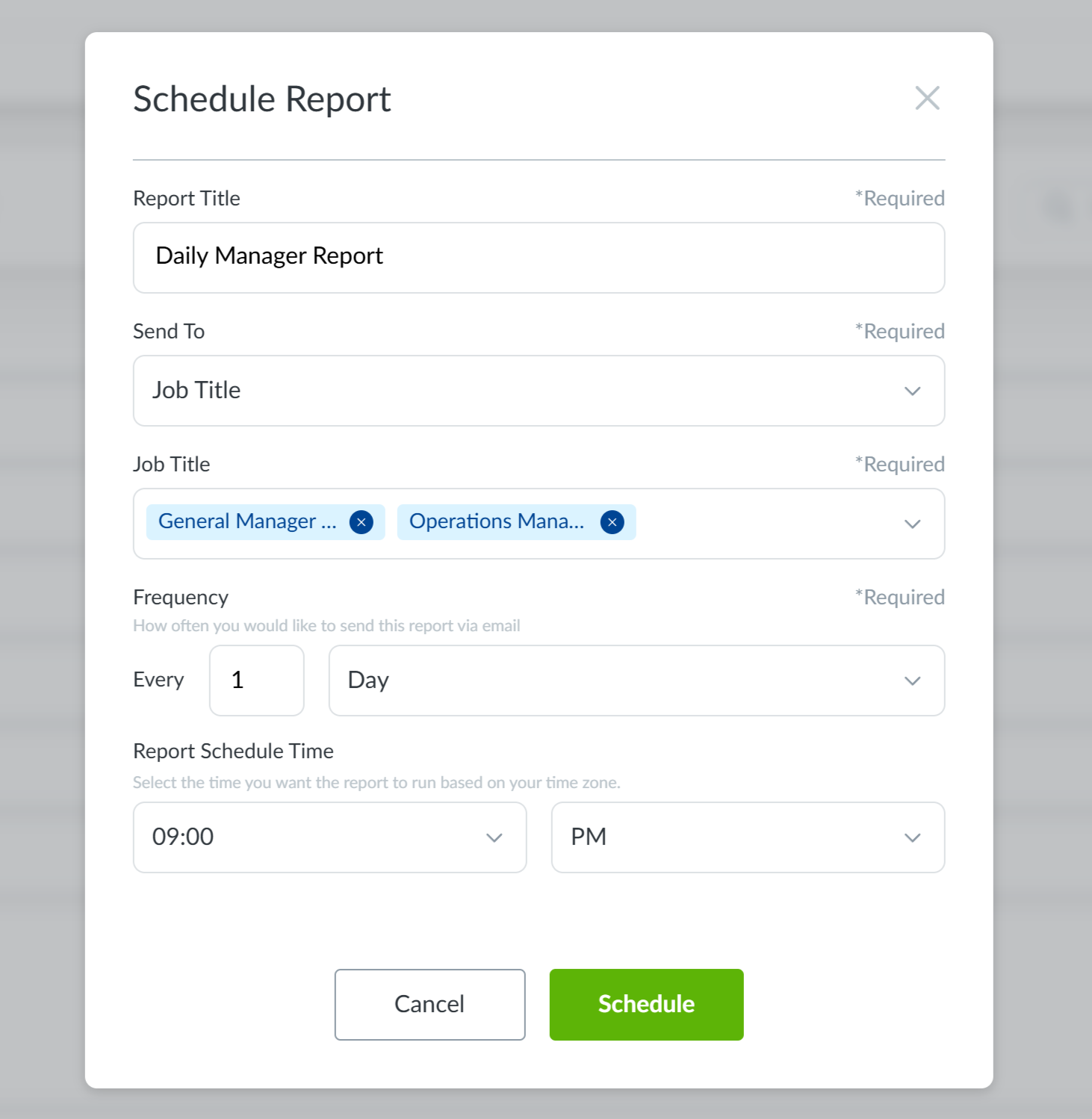
4. On the Schedule Report page, update the Report Title, choose recipients in the Sent To field (individuals or job titles), and set when the report is sent using Frequency and Report Schedule Time. When finished, click Schedule.
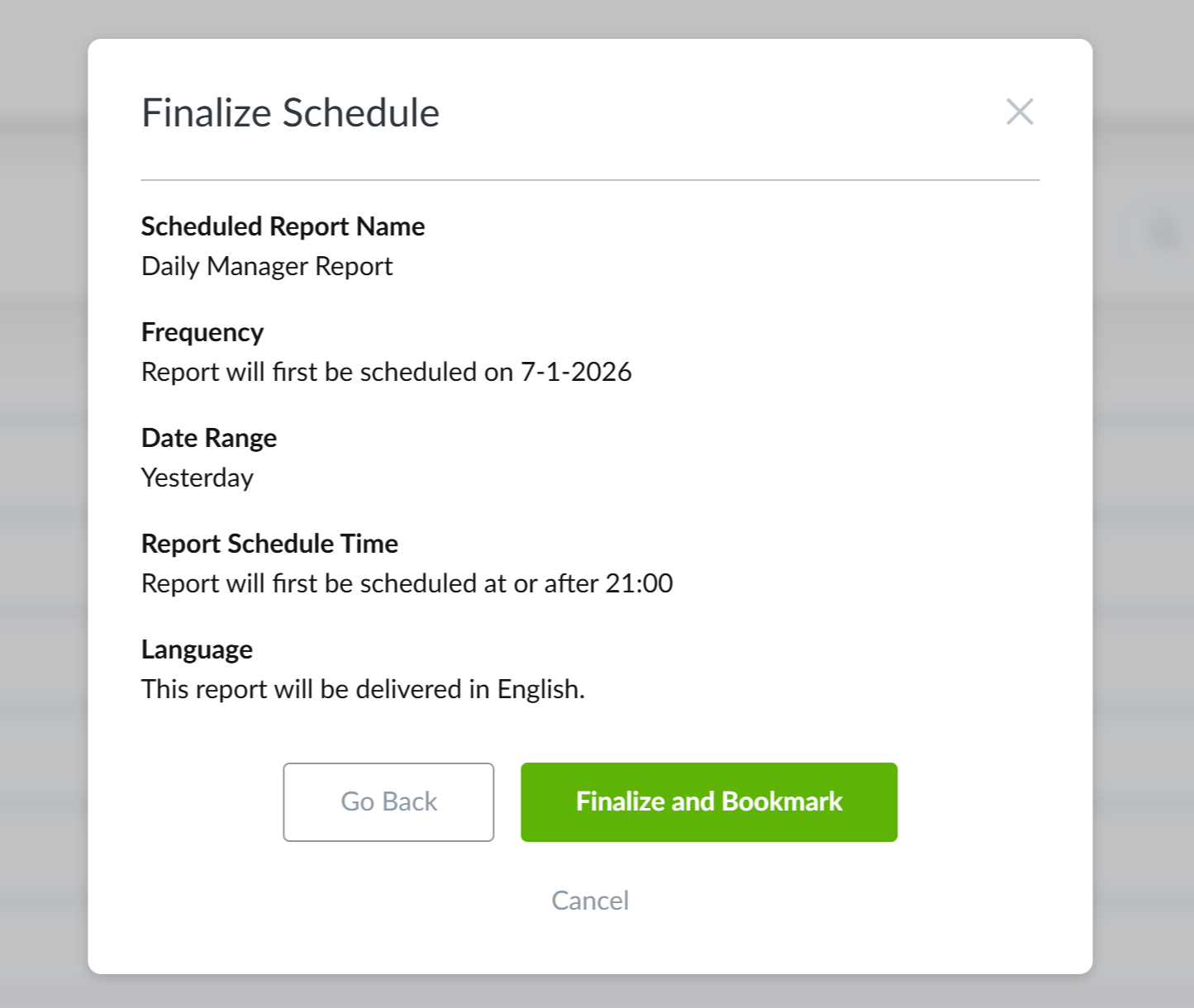
5. Next, review the report details and click Finalize and Bookmark. To make changes, select Go Back.
The selected recipients will begin receiving this report by email at the scheduled date and time, as long as each recipient has an email address in their Quore account settings.
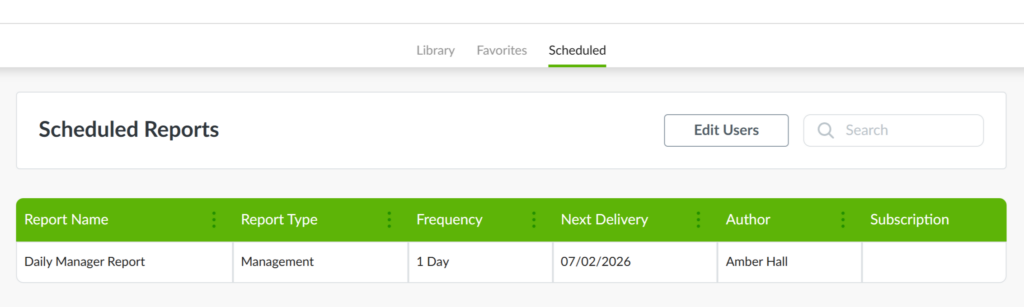
You can update this report at any time from the Scheduled section in Reports. Hover to the right of the Report Name to update the report settings and recipients.
Click here for more information on using the Reports app.
Best Practices
The Daily Manager Report is most effective when it becomes part of your daily routine. Here are a few tips to help you get the most out of it.
- Start the day off with knowledge of yesterday.
Schedule the report to arrive at the beginning of your workday, so you have a clear snapshot of your team’s performance from the previous day. - Use it in your morning huddle.
Talk through the report with your team to keep everyone on the same page. - Focus on what still needs action.
Yesterday only matters if it informs today. Look at what still needs attention – not just what was completed. - Look for patterns, not just one-day issues.
Repeated gaps – missed PMs, recurring Complaints, or growing Work Order backlogs – signal where teams may need to refocus. - Delegate work to the right team.
- Housekeeping → Requests
- Engineering → Work Orders and PMs
- Front Desk → Tasks
When everyone knows what needs attention and where it belongs, the day runs smoother – for your team and your guests.