

In this article, you will learn more about the Inspections app, which is available on the desktop and on mobile.
Checklist vs Inspection
Before you begin to use the Inspections app, you need to understand the difference between a checklist and an inspection, both of which can be created and completed in the Inspections app.
A checklist is a simple list of steps to be marked off but does not have the option to fail steps.
An inspection offers the ability to assign steps to specific departments. You can also fail steps in an inspection. Failed steps will generate tasks. Any item that fails will also be added to the Pending Items list so management can track follow-up.
Desktop
How to Access the Inspections App from the Desktop
After logging into Quore on the desktop, click on the App Switcher, scroll down, and click on the Inspections app.
Overview
The Overview page is the first page you will see after opening the Inspections app from the desktop. This page shows you a list of all open and closed inspections. Open inspections are in progress; Closed inspections are completed records. Use the Search field to find the open or closed inspection you are looking for more quickly. Select an inspection from the Open tab to continue, complete, or cancel it.
Note: If you have multiple properties in your login, you can filter open and closed inspections by property using the Filters icon:
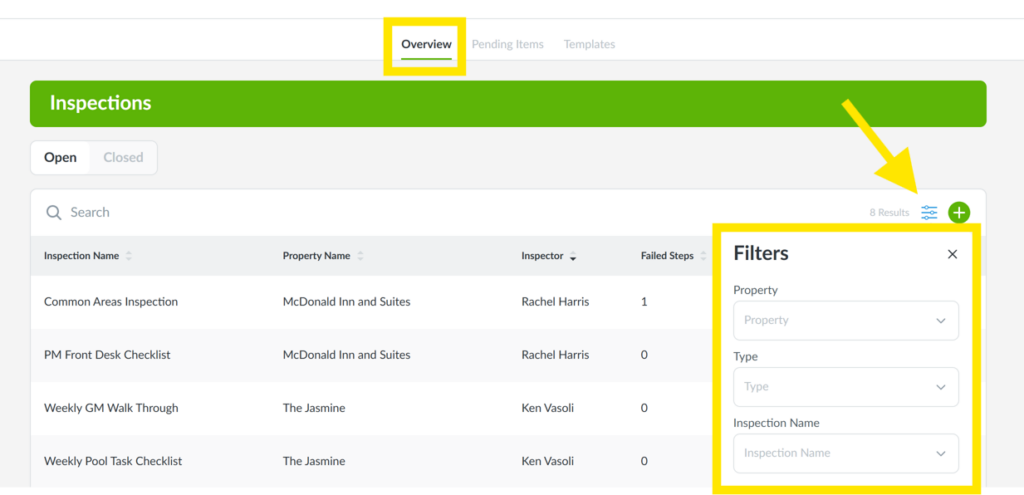
Start a new inspection from this page by clicking on the green + icon.
Pending Items
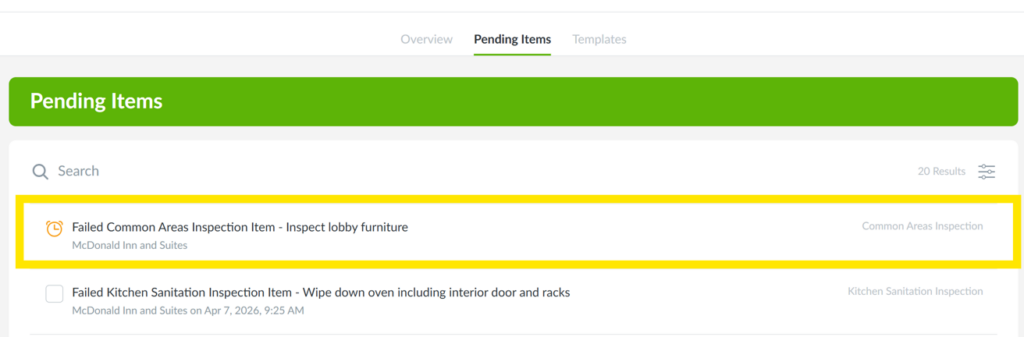
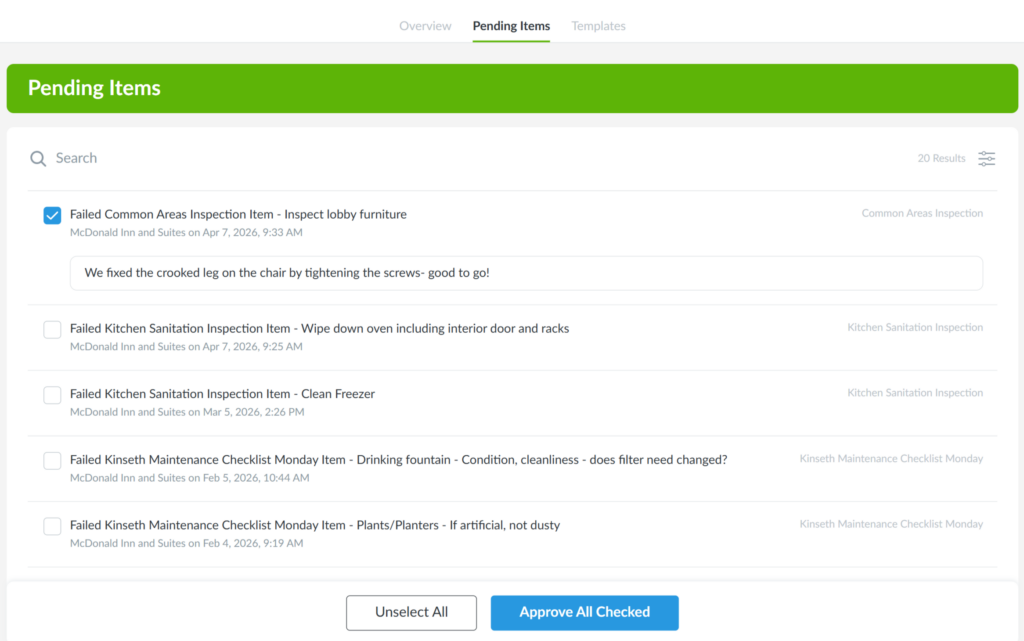
The Pending Items page shows all failed steps and allows management to follow up. Failed steps create Tasks on the assigned department’s To Do List. If a step on the Pending Items page has a clock beside it, it means it is waiting for someone to take action on the Task on the To Do List. Clicking on the step will take you to the Task on the To Do List. See example below:
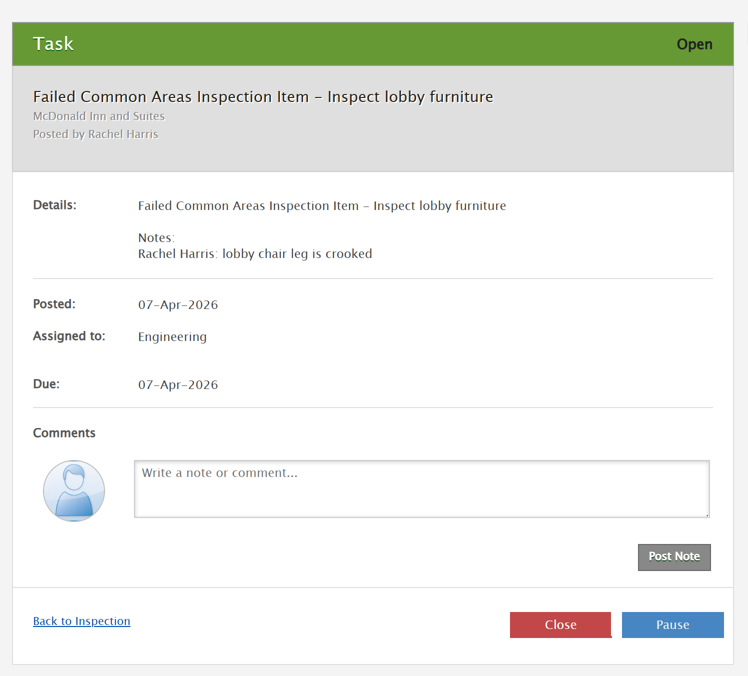
Once the Task on the To Do List has been completed, you can then check off the step, enter a note (optional), and Approve All Checked to complete the process:
Records/Reports
The Closed page shows you inspections completed. You can use the Filters button to narrow down the types of inspections you see by Property, Type, and Inspection Name. You can also click the Calendar icon to filter closed inspections by date range. Click here to learn more about Closed Inspections.
While records of inspections can be found in the Closed tab, our Reports app allows you to pull inspections information that can be easily exported, printed, and scheduled to come right to your inbox. These reports include the Completed Inspections report, the Inspection Item Details report, and the Pending Inspection Items report. To learn more about these and other reports, click here to visit our Reports index.
Templates
The Templates page allows you to create and edit existing templates and steps. Click here to learn more about Inspections setup.
Pro Tip: Set a reminder to add your checklist or inspection to your To Do List.
Mobile
Accessing the Mobile App
Log in to Quore on your mobile device. Navigate to the App Switcher in the bottom-right corner of your screen and scroll until you see the Inspections app.
Completing an Inspection on Mobile
Use the mobile Inspections app to complete inspections and checklists in real time from the convenience of your mobile device.
From your Inspections Overview, you can tap on any open inspection to continue. Use the + icon in the top-right corner of your screen to start a new inspection. Click here to learn more about completing an inspection on mobile.

