
The Mail app gives Quore users a simple way to communicate with team members across their property or company. Whether sending a direct message or sharing a memo, Mail helps keep information organized, accessible, and easy to find on both desktop and mobile. It’s ideal for operational communication, helping teams stay connected and informed.
Note: For shift handoffs and daily updates, we recommend using the Log Book, conveniently located on the Dashboard. Click here to learn more.
Accessing the Mail App
You can access the Mail app from both the desktop and mobile versions of Quore.
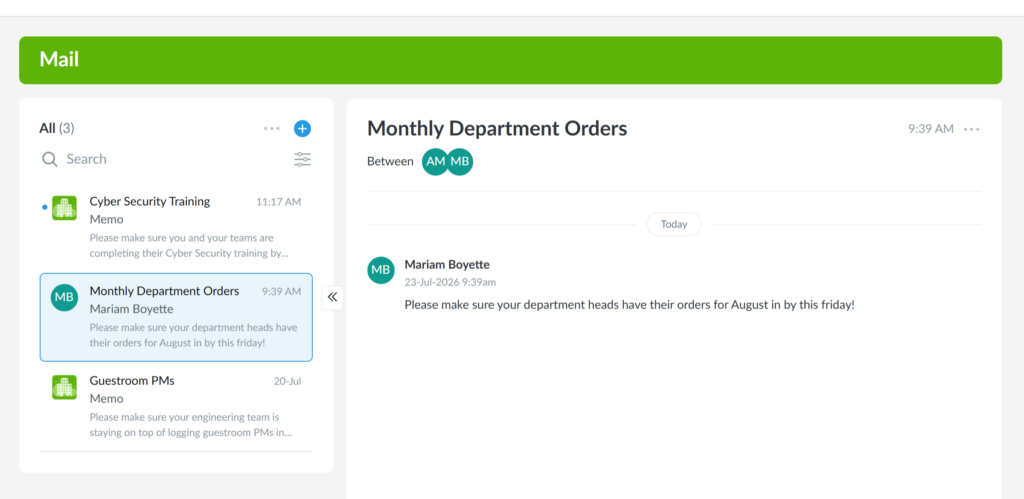
On desktop, select the App Switcher next to the green Q, then choose Mail to open your inbox. Select a message to view the details.
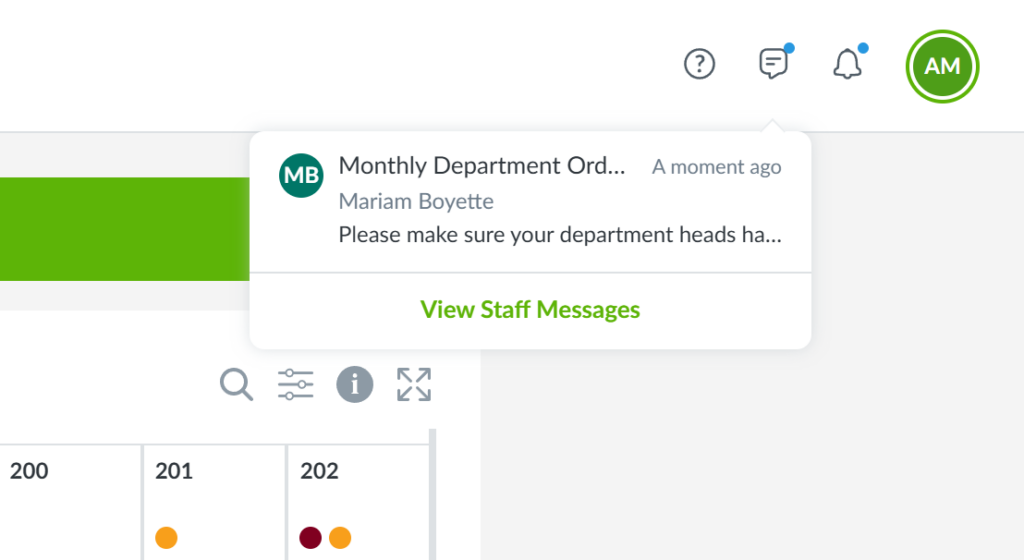
Pro Tip: Select the Messages icon on the Dashboard to view new messages from other staff. When you receive a new message, a notification dot appears on the icon. Click View Staff Messages to be taken to the Mail app.
On the Quore mobile app, open the App Switcher and select Mail to access your inbox and manage your messages.